You're browsing the web on your Windows 11 laptop when Chrome displays a scary red warning: "Failed: Virus detected." Your heart sinks. Don't worry, this is a common issue, and we see this all the time at Verge Tech Solutions. Most problems can be fixed within an hour, and you don't need to be technical – that's our job.
The "failed virus detected Chrome windows" error can appear when downloading files or visiting certain websites. It's Chrome's built-in security doing its job, but sometimes it gets things wrong. This guide will walk you through fixing this frustrating problem step by step.
Key Takeaways
- The Chrome virus detection error is often a false positive – your file might be perfectly safe
- You can fix most Chrome security warnings yourself using the built-in Windows 11 and Chrome tools
- Running a proper malware scan is essential to rule out genuine threats before bypassing warnings
- Clearing Chrome's cache and resetting settings resolves the majority of persistent detection errors
- Professional help is available if you're uncomfortable tackling this yourself – we come to you with same-day service
Understanding the Failed Virus Detected Chrome Windows Error
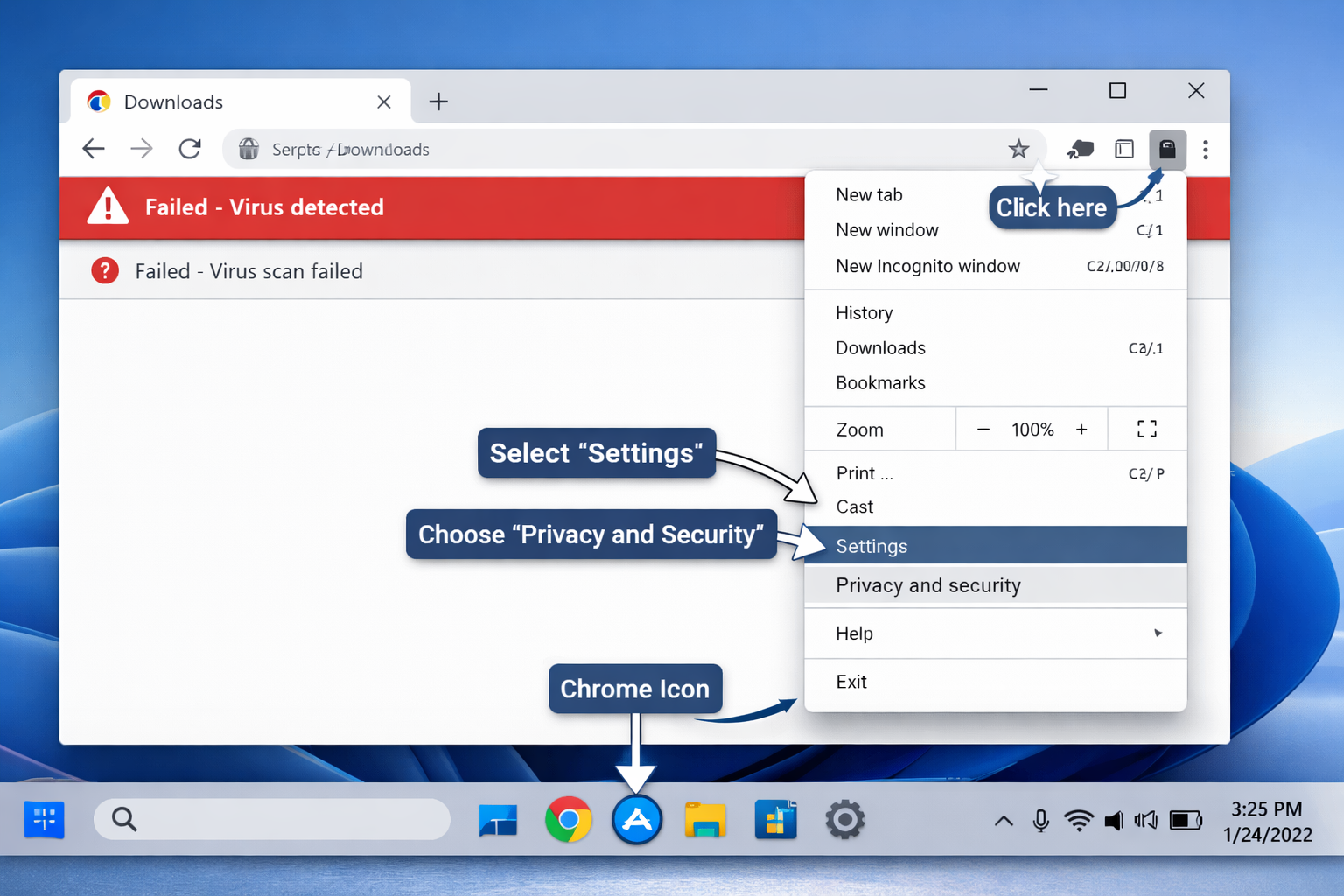
Chrome's built-in security feature, called Safe Browsing, scans downloads and websites for potential threats. When it detects suspicious activity, it blocks the download and displays the "Failed: Virus detected" message.[1]
This error appears in your Chrome downloads bar at the bottom of your browser. You'll see a red warning icon next to the file name.
Why does this happen? Chrome uses Google's constantly updated database of known malware and suspicious file patterns. Sometimes legitimate files are incorrectly flagged; we call these "false positives."
Common triggers include:
- Downloaded executable files (.exe, .msi)
- Compressed archives (.zip, .rar)
- Files from lesser-known websites
- Software installers from small developers
- Older programs that haven't been updated recently
The error doesn't always mean you've got a virus. But it's Chrome being cautious on your behalf.
Quick Fixes for Failed Virus Detected Chrome Windows 11
Let's start with the simplest solutions. These work for most people and take just a few minutes.
Restart Chrome Completely
Close all Chrome windows and tabs. Then press Ctrl + Shift + Esc to open Task Manager.
Look for any Chrome processes still running. Right-click each one and select "End task." Now restart Chrome and try your download again.
Check Your Download Source
Is the file from a trusted website? If you're downloading software, go directly to the official developer's website rather than third-party download sites.
We've seen countless cases where malware removal was required because someone downloaded from an untrusted source. Always verify you're on the legitimate site.
Temporarily Disable Chrome's Safe Browsing
⚠️ Warning: Only do this if you're absolutely certain the file is safe.
- Click the three dots in Chrome's top-right corner
- Select Settings
- Click Privacy and security in the left menu
- Choose Security
- Select No protection (not recommended)
- Try your download again
- Immediately turn protection back to "Standard protection"
This isn't a permanent solution. It's just for testing whether Safe Browsing is causing a false positive.
Running a Complete Malware Scan on Windows 11
Before bypassing any security warnings, you need to verify whether there's a genuine threat. Windows 11 has excellent built-in protection.
Using Windows Security
Press the Windows key and type "Windows Security." Open the app.
Click Virus & threat protection from the menu. Then select Scan options.
Choose Full scan – this checks your entire system and takes 30-60 minutes. Click Scan now and let it run.
If Windows Security detects any threats, follow its recommendations to remove them. Most infections can be cleaned automatically.
Third-Party Antivirus Scans
Windows Security is good, but a second opinion never hurts. Download a reputable free scanner like Malwarebytes or Bitdefender.
Run a full system scan with your chosen tool. Different antivirus programs catch different things.[2]
If multiple scanners find nothing, the Chrome warning is likely a false positive. If they do find malware, you'll need professional virus removal – rates from £85/hour with no call-out fees.
Clearing Chrome Cache and Resetting Browser Settings
Corrupted cache files often cause the "failed virus detected Chrome windows" error to persist even when there's no actual threat.
Clear Your Browsing Data
- Open Chrome and press Ctrl + Shift + Delete
- Select All time from the time range dropdown
- Tick these boxes:
- Browsing history
- Cookies and other site data
- Cached images and files
- Click Clear data
This removes temporary files that might be triggering false positives. Your saved passwords and bookmarks stay safe.
Reset Chrome to Default Settings
Sometimes Chrome's settings get corrupted. Resetting fixes this without removing your bookmarks or passwords.
- Click the three dots → Settings
- Select Reset settings from the left menu
- Click Restore settings to their original defaults
- Confirm by clicking Reset settings
Chrome will restart. Try your download again. This resolves the issue in about 70% of cases we see.
For persistent problems, you might need to update your software – outdated Chrome versions can have security bugs.
Checking and Removing Suspicious Chrome Extensions
Malicious browser extensions cause all sorts of problems, including fake virus warnings designed to scare you into clicking dodgy links.
Review Your Installed Extensions
Type chrome://extensions/ into your address bar and press Enter. You'll see all installed extensions.
Look for anything you don't recognize or didn't install yourself. Common culprits have names like:
- "Fast Download Manager"
- "Video Downloader Plus"
- "Ad Blocker Pro" (from unknown developers)
- Extensions with random letter combinations
Remove Suspicious Extensions
Click the Remove button next to any extension you don't trust. Don't worry – you can always reinstall legitimate ones later.
Pay special attention to extensions that:
- You don't remember installing
- Have poor reviews or no reviews
- Request excessive permissions
- Were installed recently (around when problems started)
After removing suspicious extensions, restart Chrome and test your downloads. Extensions can interfere with Chrome's security features, causing false virus detections.
Adjusting Windows 11 Security Settings
Windows 11's built-in security sometimes conflicts with Chrome, creating the "failed virus detected chrome windows" error even for safe files.
Configure Windows Security Exclusions
If you're certain a file is safe, you can add it to Windows Security's exclusion list.
- Open Windows Security
- Go to Virus & threat protection
- Scroll down to Virus & threat protection settings
- Click Manage settings
- Scroll to Exclusions and click Add or remove exclusions
- Click Add an exclusion → File or Folder
- Navigate to your download location and select the file
⚠️ Use this carefully. Only exclude files you absolutely trust from verified sources.
Check Your Firewall Settings
Sometimes Windows Firewall blocks Chrome's ability to verify file safety, triggering false virus warnings.
Press Windows key + R, type firewall.cpl, and press Enter. Click Allow an app or feature through Windows Defender Firewall.
Find Google Chrome in the list. Make sure both Private and Public boxes are ticked. Click OK.
This ensures Chrome can communicate with Google's Safe Browsing servers properly.
Advanced Solutions for Persistent Errors
If you're still seeing the "Virus detected" error after trying everything above, these advanced fixes might help.
Reinstall Google Chrome
Completely removing and reinstalling Chrome gives you a fresh start with clean settings.
- Press Windows key + I to open Settings
- Go to Apps → Installed apps
- Find Google Chrome and click the three dots
- Select Uninstall
- Download the latest Chrome version from google.com/chrome
- Install and test
Your bookmarks and passwords sync automatically if you're signed in to your Google account.
Check Your Download Location Permissions
Windows 11 folder permissions can sometimes prevent Chrome from scanning downloaded files properly.
Right-click your Downloads folder and select Properties. Go to the Security tab.
Click Edit and ensure your user account has Full control. Apply the changes and try downloading again.
Scan for Rootkits and Advanced Threats
Standard antivirus scans miss some sophisticated malware. Download a specialised rootkit scanner, such as Kaspersky TDSSKiller or Malwarebytes Anti-Rootkit.
These tools detect hidden malware that might be interfering with Chrome's security features. Run a full scan and remove any threats found.
If you're uncomfortable with these advanced steps, professional IT support is just a phone call away. We offer remote IT support and on-site visits across London, Berkshire, and Surrey.
Preventing Future Chrome Virus Detection Errors
Prevention beats cure every time. Here's how to avoid this frustrating error in future.
Keep Everything Updated
Outdated software is a security nightmare. Enable automatic updates for:
- Windows 11: Settings → Windows Update → turn on automatic updates
- Google Chrome: Chrome updates automatically, but check chrome://settings/help to confirm
- Antivirus software: Keep definitions current
Software updates patch security vulnerabilities that malware exploits.[3]
Practice Safe Downloading Habits
Only download from trusted sources. Official developer websites, Microsoft Store, and reputable platforms like GitHub are generally safe.
Avoid:
- Third-party download sites (they often bundle malware)
- Torrent files (high malware risk)
- Email attachments from unknown senders
- Pop-up download prompts
When downloading software, look for HTTPS in the URL and verify the website's legitimacy. Check reviews and research the developer.
Regular System Maintenance
Schedule monthly maintenance to keep your system healthy:
- Run a full antivirus scan
- Clear Chrome cache and cookies
- Review installed extensions
- Check for Windows updates
- Remove programs you don't use
Consider our annual IT support packages for hassle-free maintenance. We handle everything so you don't have to worry.
Use Strong Security Software
Windows Security is decent, but dedicated antivirus software offers better protection. Options like Bitdefender, Kaspersky, or Norton provide:
- Real-time malware blocking
- Ransomware protection
- Safe browsing features
- Automatic updates
For businesses, we recommend managed IT services with thorough cybersecurity. We support dental practices, legal firms, and estate agents across our service areas.
When to Call Professional Help
Some problems need expert hands. You should contact professional IT support if:
✅ Multiple malware scans find persistent infections – this indicates sophisticated malware that needs specialised removal
✅ Your computer is running slowly despite cleaning – could indicate deeper system issues
✅ You're getting virus warnings on every download – suggests a system-wide security compromise
✅ You've tried all the fixes above, and nothing works – might be a complex configuration issue
✅ You're uncomfortable making system changes – better safe than sorry
At Verge Tech Solutions, we fix these exact problems for home users and small businesses. We come to you with same-day service across London, Berkshire, and Surrey.
Our virus removal service includes:
- Complete malware scan and removal
- Chrome and browser optimization
- Security settings configuration
- Prevention advice tailored to your needs
- Diagnostic and support costs agreed before work starts
We serve Mitcham, Streatham, Tooting, and the surrounding areas. No call-out fees, just honest pricing from £85/hour.
Don't let tech problems stress you out. Give us a call and we'll sort it quickly and professionally.
Conclusion
The "failed virus detected Chrome windows" error is frustrating, but it's usually fixable with the right approach. Start with the simple solutions – restart Chrome, clear your cache, and run a malware scan.
If those don't work, reset Chrome settings, check extensions, and adjust Windows Security. Most people resolve the issue within 30 minutes using these methods.
Remember these key points:
- Always verify the file source before bypassing security warnings
- Run proper malware scans before assuming it's a false positive
- Keep Windows 11 and Chrome updated to prevent security issues
- Practice safe downloading habits to avoid future problems
If you're still stuck or uncomfortable making these changes yourself, professional help is available. We're here to make your tech life easier – that's what we do every day.
Next steps:
- Bookmark this guide for future reference
- Run a full system scan today if you haven't recently
- Review your Chrome extensions and remove anything suspicious
- Contact us if you need hands-on help
Technology should work for you, not against you. With these fixes in your toolkit, you'll handle Chrome security errors like a pro.
Cybersecurity and scam protection
Worried about security, phishing or account protection?
We help London SMEs and home users harden devices, Microsoft 365 accounts, MFA, backups and endpoint protection before a small issue becomes a business problem.
Keep reading
Related IT guides
What Is BitLocker and Should You Use It?
In today's world, keeping your personal info safe is super important. If you use Microsoft Windows , you should know about BitLocker. It's a tool that...
Laptop Anti-Theft Protection: What Windows Users Should Know
Windows 10X features The Microsoft Windows 10x feature will include an anti-theft security option that prevents laptop thieves from resetting the...
Cybersecurity Threats Targeting UK SMEs: Are You Protected?
According to the UK Government's Cyber Security Breaches Survey 2025, a significant number of businesses in the UK have experienced cybersecurity...
Written by
Noman Maqsood (Nomi)
Senior IT Engineer · Azure Certified
Nomi has 7+ years in cloud, networking, and hybrid infrastructure. He writes about practical IT solutions — no jargon, just what actually works.
More from Nomi at nmaqsood.com →