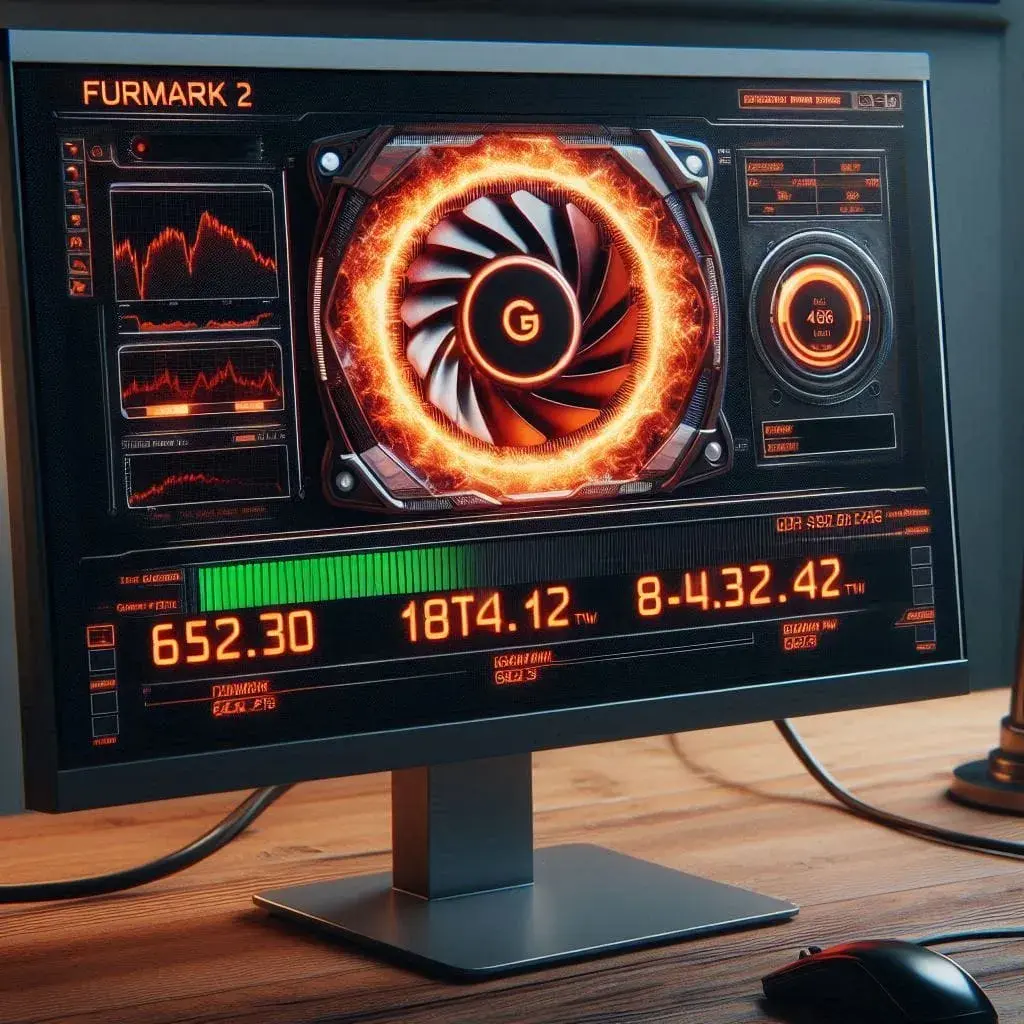
Is your computer getting too hot? It's key to keep an eye on its temperature for top performance and long life. FurMark is a top tool for checking CPU overheating and testing your GPU. But, how does it work and what are the risks?
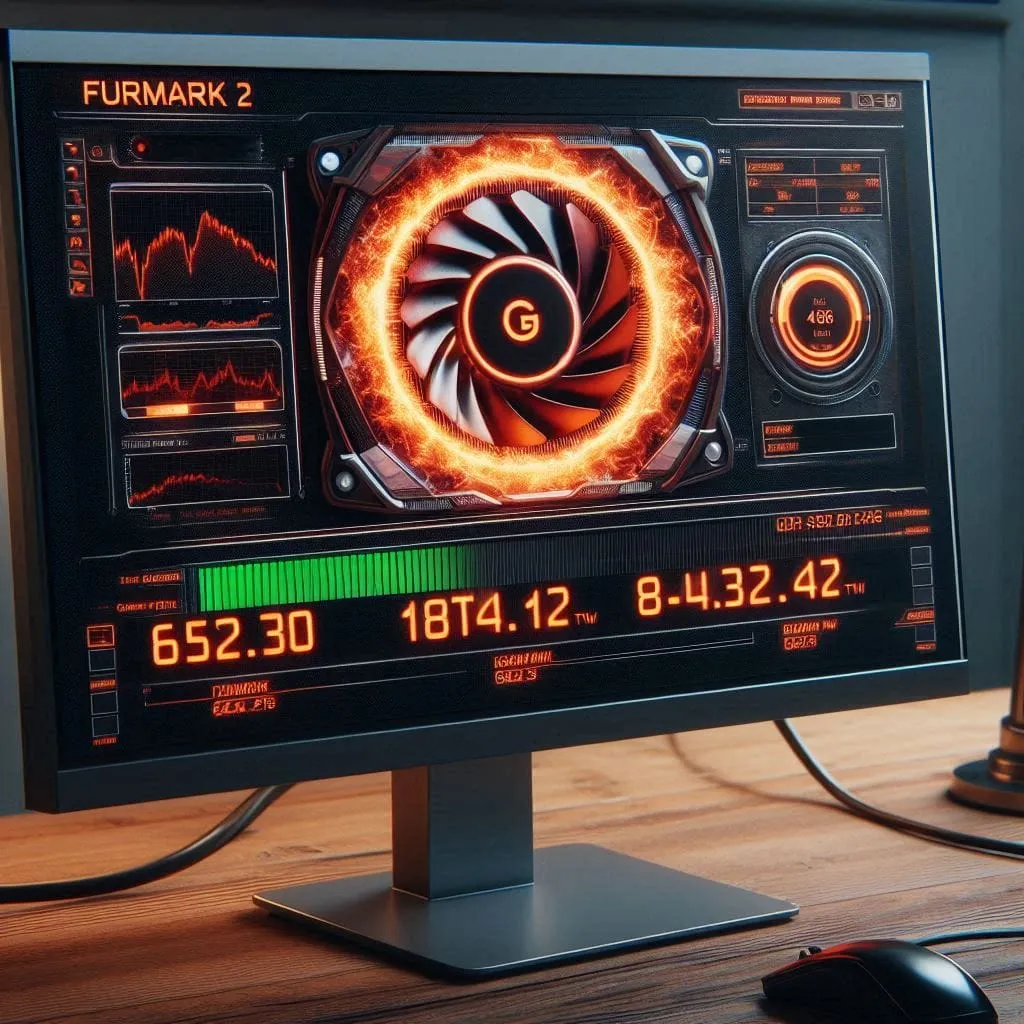
FurMark tests your graphics card's limits with a stunning multi-coloured pattern. It checks temperatures and power use, showing how healthy your GPU is. A 30-minute test without issues indicates your graphics card is performing well.
Stress testing is very useful but comes with risks. FurMark can push GPU temperatures to 90°C or higher, causing crashes or instability. It's vital to use this tool correctly and interpret its results.
Key Takeaways
- FurMark is a powerful tool for GPU stress testing and temperature monitoring.
- Ideal GPU temperatures during testing should range between 75°C to 85°C.
- Modern GPUs (post-2010) are generally safe for FurMark testing when used correctly.
- Overclocking and poor cooling increase the risk of damage during stress tests.
- Constant monitoring of temperatures and system metrics is essential when using FurMark.
- Longer stress tests provide more accurate results but increase thermal risks.
- Understanding the symptoms of component overheating is crucial to system health.
Understanding CPU Overheating and GPU Stress Testing
Keeping your computer's parts cool is key to top performance and long life. Checking CPU temperatures and testing your GPU's stress is important. These steps help stop overheating and keep your system stable.
The importance of hardware temperature monitoring
It's crucial to watch your hardware's temperature to avoid overheating. This can cause crashes or damage. Regular checks of CPU temperatures can detect cooling issues early.
Introduction to FurMark as a benchmarking tool
FurMark is a top tool for testing your GPU's limits. It's great for checking GPU temperatures and stability, especially after overclocking. It has two modes: benchmark and stress test. These provide insights into your GPU's performance and thermal behaviour.
Potential risks of overheating components
Overheating can really slow down your system and shorten its life. If your GPU reaches 90°C or higher during testing, your cooling may be insufficient. Over time, high temperatures can reduce your GPU's efficiency and cause issues.
| Temperature Range | GPU Status | Action Required |
|---|---|---|
| 60-85°C | Normal | No action needed |
| 85-90°C | High | Monitor closely |
| 90°C+ | Critical | Improve cooling immediately |
Understanding these ideas and using tools like FurMark helps keep your system running well. It prevents thermal throttling and ensures your computer performs well for gaming, graphic design, or other demanding tasks.
Preparing Your System for FurMark Testing
Before starting FurMark testing, make sure your system is ready. This ensures your results are accurate and protects your hardware from damage.
Checking Current System Temperatures
First, check your system's current temperatures. Use tools like MSI Afterburner or HWiNFO to monitor your GPU and CPU temperatures. These tools can alert you if temperatures exceed safe limits during testing.
Ensuring Proper Ventilation and Airflow
Good airflow is key to keeping your system cool. Clean your PC case and fans to ensure they work well. Here's what to do:
- Position your PC in a well-ventilated area
- Organise internal cables for better airflow
- Check that all case fans are working correctly
Updating Graphics Drivers
Make sure your graphics drivers are up to date. This is important for stress testing. Updated drivers can make your system more stable and might even improve performance.
Cooling Fan Optimisation
Adjust your fan settings before running FurMark. Most GPUs let you create custom fan profiles. Select a more aggressive curve to keep temperatures within limits during the test.
Remember, GPUs should not go above 85°C during stress tests. If they do, stop the test and check your cooling setup.
By taking these steps, you'll be ready for safe and accurate FurMark testing. This will help you see how well your GPU performs and how stable it is.
How to Check CPU Overheating and GPU Stress Test with FurMark
FurMark software is great for testing your GPU and improving your PC's performance. Here's how to check for CPU overheating and stress test your GPU:
- Download and install FurMark from a trusted source.
- Launch the software and pick your resolution and anti-aliasing settings.
- Click 'Go' to start the stress test.
- Run the test for at least 30 minutes to get accurate data.
Watch the temperature in the top left corner of the screen during the test. Look out for signs of trouble, like system crashes or sudden shutdowns.
For a full check, use other diagnostic tools with FurMark. They give more info on how your system performs under stress.
| Component | Normal Temperature | Stress Test Temperature |
|---|---|---|
| CPU | 40-50°C | 66°C |
| GPU | 60-65°C | 75°C |
| Motherboard Chipset | 45-55°C | 65°C |
| RAM/SPD Hub | 35-45°C | 50°C |
If your system passes the FurMark test without problems, it shows your GPU is healthy. Regular stress tests are key for keeping your PC running well and spotting issues early.
Interpreting FurMark Test Results
Using GPU benchmark software like FurMark is key for tuning your hardware performance. Let's look at how to make sense of these results.
Analysing GPU Temperature Readings
Temperature readings from your GPU are crucial for its health. During a FurMark test, the ideal temperature is between 75°C and 85°C. If it goes above 90°C, your cooling system might need fixing.
Understanding Power Consumption Data
Looking at power consumption is also important when interpreting FurMark results. High power use means your GPU might be at its limit. This info helps with:
- Evaluating overclocking limits
- Checking if your power supply is enough
- Improving energy efficiency
Recognising Signs of Hardware Struggle
Watch for these signs of trouble during a FurMark test:
- FurMark or system crashes
- Blue screens
- Blank displays
- Complete shutdowns
These signs mean you should check your graphics card and power supply carefully.
FurMark is a great tool for testing your GPU's limits. It helps spot potential issues, check thermal performance, and benchmark your system. By understanding these results, you can keep your GPU stable and performing well for gaming and professional tasks.
Safe Operating Temperatures for CPUs and GPUs
It's key to know the safe temperatures for your PC to keep it running well. For GPUs, aim for temperatures between 60-85°C during stress tests like FurMark. If it goes over 90°C, it might be overheating and needs fixing.
CPUs also have their limits. They can usually handle up to 82°C, with short spikes to 84-85°C. But, high temperatures for a long time can cause CPU thermal throttling. This slows down your PC and can shorten its life.
| Component | Safe Temperature Range | Maximum Temperature |
|---|---|---|
| GPU | 60-85°C | 90°C |
| CPU | Up to 82°C | 84-85°C (brief peaks) |
To keep your system cool, check the heat sink's performance. A good heat sink helps manage temperatures well. Clean it regularly and make sure the thermal paste is applied correctly to boost its efficiency.
Stress tests like FurMark push your GPU hard. Short spikes in temperature are okay, but sustained high temperatures can indicate cooling problems. Fixing these issues is important.
Optimising System Cooling Solutions
Keeping your computer cool is key to its performance and life. Let's look at some top ways to cool your system.
Improving case airflow
Good case airflow is essential for keeping temperatures within acceptable limits. Make sure fans are in the right spots and cables are tidy. A well-designed case allows air to move freely, reducing heat.
Upgrading CPU and GPU coolers
If your computer's cooling isn't sufficient, consider upgrading. Installing a better CPU cooler can significantly reduce heat. For GPUs, choosing a cooler made for aftermarket use can be a big step up from the stock one.
Applying thermal paste effectively
Applying thermal paste correctly is crucial for efficient heat dissipation. Just a small amount, like a pea, on the CPU's centre is enough. When you install the cooler, it spreads evenly, ensuring the CPU and heatsink make perfect contact.
| Cooling Solution | Temperature Reduction | Noise Level |
|---|---|---|
| Stock CPU Cooler | 0°C (Baseline) | Moderate |
| Aftermarket Air Cooler | 10-15°C | Low to Moderate |
| Liquid Cooling | 15-20°C | Very Low |
By using these cooling tips, you can keep temperatures down even when you're pushing your system hard. This improves performance and extends the service life of your components.
Addressing Common Overheating Issues
Keeping your system cool is key to maximising your GPU's performance and preventing overheating damage. Let's look at some easy ways to fix overheating problems.
Cleaning your GPU regularly is a must. Dust can really slow down your GPU. Clean it every three to six months, or more if you live in a dusty area, to keep it running cool.
It's also vital to keep your GPU drivers up to date. New drivers often bring better stability and compatibility. This can lower the chance of overheating.
Adjusting your fan curve can also help. Tools like MSI Afterburner let you set fan speeds to optimise performance. This stops your GPU from overheating and reduces the risk of damage.
- Clean your GPU regularly
- Update GPU drivers
- Customise fan curve
- Ensure proper airflow
- Consider upgrading cooling solutions
If your GPU fans aren't working, try the card in another system. This can help determine whether the problem is with the power supply, PCIe cables, or the motherboard, and whether it is causing overheating.
| Issue | Solution | Benefit |
|---|---|---|
| Dust accumulation | Regular cleaning | Improved cooling efficiency |
| Outdated drivers | Driver updates | Enhanced stability and compatibility |
| Inadequate fan speed | Fan curve adjustment | Optimised cooling performance |
| Poor airflow | Case ventilation improvement | Better overall system cooling |
By applying these tips, you can address common overheating issues. This keeps your system running well and prevents damage to your hardware.
FurMark Safety Concerns and Misconceptions
The FurMark stress test is a key tool for hardware testing. It has caused debates in the tech world. Some call it a "heat virus" because it makes GPUs work very hard. Let's look into these claims and see how FurMark affects your hardware.
Debunking the "Heat Virus" Myth
The term "heat virus" is wrong. FurMark is not harmful, but a tool to test graphics cards. It pushes your GPU to its limits to find problems early.
Understanding FurMark's Impact on Hardware
FurMark can make your hardware very hot. This has raised worries about damage. But, if used carefully, it doesn't harm your components. It's important to watch the temperatures and use it for short periods.
Manufacturer Perspectives on Stress Testing
GPU makers are cautious about extreme stress tests. They worry that new users might harm their hardware. Yet, many experts see FurMark as a key tool. It helps assess GPU stability and performance.
| Overclocking Aspect | Impact |
|---|---|
| Heat Generation | Higher operating temperatures, potentially compromising stability |
| Warranty | May void device warranties, leading to repair or replacement costs |
| System Stability | Can cause crashes, freezes, or unexpected shutdowns if not properly tuned |
| Hardware Stress | Excessive stress may result in permanent damage if limits are exceeded |
FurMark is a strong tool for checking GPU performance. But it's important to use it carefully. Always prioritise your hardware's safety and follow the manufacturer's advice when testing or overclocking.
Balancing Performance and Temperature in Overclocking
Boosting your GPU can make games run faster, but you must watch the temperature. The British cooling guide advises keeping GPU temperatures under 80-85 degrees Celsius for best performance.
Risks of Pushing Hardware Limits
Overclocking is a delicate balance between speed and stability. Higher speeds mean more heat and power use. Start by increasing your GPU's core speed in small increments, like 5% at a time, to find the right balance.
Stability Testing for Overclocked Systems
Testing for overclock stability is key to keeping your system stable. Use tools like FurMark and Prime95 to test how your system performs under heavy load. These tests spot any issues that could affect performance or cause crashes.
Monitoring Tools for Overclockers
For safe overclocking, you need good monitoring software. MSI Afterburner is a top pick, showing you temperatures, speeds, and power usage in real time. For NVIDIA, NVIDIA Inspector gives detailed control. AMD users can use AMD Radeon Performance Tuning.
Remember, safety first in overclocking. Up the clock and memory speeds bit by bit, checking stability each time. If you hit your power limit, you might raise it slightly, but watch the temperatures closely. With careful adjustments and stability testing, you can safely boost performance while keeping temperatures in check.
| Overclocking Step | Recommended Action |
|---|---|
| Initial Core Clock Increase | 5% increment |
| Initial Memory Clock Increase | 10% or 50-100 MHz |
| Stability Testing Duration | Extended periods |
| Temperature Limit | Below 80-85°C |
Conclusion
Regular checks of your computer's hardware are key to keeping it running well. Tools like FurMark and Prime95 stress-test your system, pushing it to its limits. This helps you spot problems early, before they get worse.
When stress-testing, monitor temperatures closely. Make sure your computer stays cool. FurMark shows how well your graphics card handles heavy loads. Prime95 lets you test your CPU in various ways, ensuring it can handle demanding tasks.
But remember, stress testing should be done carefully. Always update your drivers and turn off antivirus software for the best results. Regular benchmarking and stress tests keep your system running smoothly and prevent hardware issues.
FAQ
What is FurMark, and why is it important for checking CPU overheating and GPU stress testing?
FurMark is a tool for testing GPU health. It displays a multicoloured round icon on the screen to start the test. This software tests the GPU's limits by monitoring temperatures and power consumption. A 30-minute test without warnings means the graphics card is doing well.
Why is hardware temperature monitoring crucial?
Monitoring temperatures is key for system stability. High temperatures can cause crashes, blue screens, or shutdowns. If temperatures hit 90°C to 95°C during tests, you need better cooling. High temperatures can also shorten the GPU's life and cause problems over time.
How should I prepare my system before running FurMark?
Before running FurMark, check your system's temperatures and ensure good airflow. Clean the case and fans to avoid dust blocking airflow. Make sure your graphics drivers are up to date for optimal performance. Good airflow is crucial for safe temperatures during stress tests.
What are the ideal temperatures during a FurMark GPU stress test?
The ideal GPU temperature during FurMark should be between 75°C and 85 °C. If it exceeds 90°C, it might indicate cooling issues.
What are the signs of hardware struggle during a FurMark test?
Signs of hardware trouble include FurMark crashes, system crashes, blue screens, or shutdowns. These signs mean you should check your hardware, like the graphics card or power supply.
What are the safe operating temperatures for CPUs and GPUs during stress tests?
GPUs should not exceed 85°C during stress tests; 90°C is the maximum. CPUs can handle up to 82°C, with peaks of 84-85°C, without rebooting. But high temperatures can shorten component life and cause stability issues.
How can I optimise system cooling solutions?
Improve cooling by optimising case airflow and managing cables properly. Consider upgrading the CPU and GPU coolers if needed. Applying thermal paste correctly improves heat transfer. These steps help keep temperatures low during stress tests and regular use.
What are some common overheating issues, and how can they be addressed?
Common overheating problems include bad cooling, poor airflow, and dust buildup. Fix these by cleaning your system, ensuring good ventilation, and using better cooling solutions. For overclocked systems, be careful not to push the hardware too far and monitor temperatures closely to avoid damage.
Is FurMark a "heat virus" that can damage hardware?
Some call FurMark a "heat virus" because it stresses GPUs. But it's not a virus; it's a tool for finding GPU problems. It doesn't damage hardware when used right. Even though manufacturers are cautious, FurMark is a key diagnostic tool when used carefully.
How can I balance performance and temperature when overclocking?
Overclocking means balancing performance and temperature. Pushing too hard can lead to instability and shorten hardware life. Use tools such as FurMark to test stability under load. Monitor temperatures, clock speeds, and power consumption during overclocking.
Laptop and Mac repair
Need a laptop or Mac repaired locally?
Verge Tech repairs laptops, MacBooks, screens, batteries, overheating faults and performance issues with clear pricing before work starts.
Keep reading
Related IT guides
How to Quickly & Easily Encrypt Your Mac | Protect Your Data
Keeping sensitive information safe on your Apple computer is simpler than you might think. Modern macOS systems come with built-in tools designed to...
How to Avoid Laptop overheating issue
Keeping your laptop in good shape is essential to avoid any potential problems. If not properly maintained, laptops can overheat and damage their...
How to clean your computer from dust
Computers are prone to build up dust and debris. The more you use your computer, the more dust accumulates on the fan and heat sink. This can lead to...
Written by
Noman Maqsood (Nomi)
Senior IT Engineer · Azure certified
Nomi has 7+ years in cloud, networking, and hybrid infrastructure. He writes about practical IT solutions — no jargon, just what actually works.
More from Nomi at nmaqsood.com →