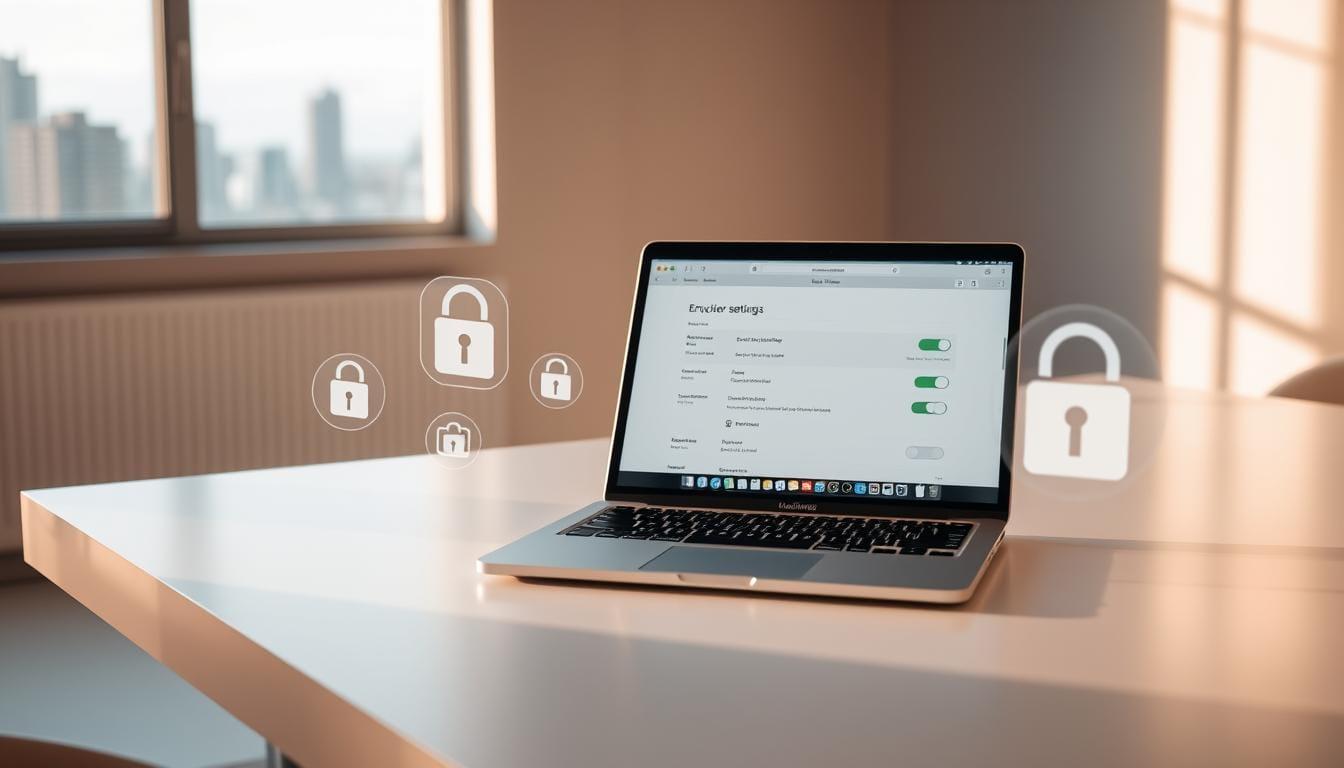
Keeping sensitive information safe on your Apple computer is simpler than you might think. Modern macOS systems come with built-in tools designed to shield your documents, photos, and login details from prying eyes. Think of it as locking your digital life in a virtual safe – only you hold the key.
Apple's native security measures transform your device into a fortress. When activated, every file gets scrambled into unreadable code until accessed with the correct credentials. This process happens smoothly in the background, so you won't notice any slowdowns while working or browsing.
Why does this matter? Imagine losing your laptop during a commute. Without proper safeguards, strangers could access your emails, financial records, or personal messages. Reliable data protection tools prevent these scenarios by creating multiple layers of defence against unauthorised access.
Key Takeaways
- Built-in macOS features offer smooth safeguarding for personal and professional content.
- Automatic encryption prevents unauthorised access to sensitive materials
- Native security solutions maintain device performance while active
- Multi-layered privacy measures protect against physical theft and digital breaches
- Initial setup requires minimal technical knowledge for immediate protection
Later sections will guide you through enabling these features and customising settings for maximum security. You'll discover how Apple's approach has evolved over time and learn best practices for managing your digital safety net.
Understanding FileVault and Its Evolution
Apple's journey with data protection began two decades ago with a a major improvement feature. In 2003, OS X Panther introduced a novel way to shield personal details, though it worked quite differently from today's solutions. This early version focused solely on securing individual accounts rather than entire storage drives.
The Origins of FileVault on macOS
That original tool encrypted only your home folder, leaving other areas exposed. While revolutionary for its time, this approach had apparent gaps. Critical system files and cached data remained vulnerable if someone gained physical access to the machine. Recovery processes were also less intuitive, requiring technical know-how that many lacked.
Transition from Legacy FileVault to FileVault 2
Everything changed in 2011 with the introduction of full-disk encryption. The upgraded version wrapped every byte in reliable security, from login screens to temporary files. Unlike its predecessor, it supported multiple accounts smoothly and offered simpler recovery options. Modern iterations work in conjunction with Apple's T2 security chips, providing hardware-backed safeguards against breaches.
These advancements mean your information stays protected whether you're editing documents or the device is asleep. The system now strikes a balance between reliable security and minimal performance impact, adapting to evolving cyber threats without slowing you down.
Encrypt Your Mac using FileVault.
Activating full-disk protection transforms your computer's privacy landscape. Apple's native solution runs quietly in the background, converting readable data into secure code whenever the screen locks. This approach ensures your information remains inaccessible without proper authorisation.
Step-by-Step Instructions to Enable FileVault
Navigate to System Settings > Privacy & Security. Scroll to the 'Security' section and select 'Turn On' beside the encryption tool. You'll need administrator privileges – enter your login details when prompted.
The system begins scrambling data immediately, working through files in order of importance. This background process lets you continue working normally. Initial setup takes minutes, though full encryption completion depends on storage size.
Managing Your FileVault Recovery Key
During activation, you'll face a critical choice: store the recovery code with Apple or create a local copy. The 24-character key acts as a lifeline if you forget your login credentials. Write it down physically or save it in a password manager – never store it digitally without encryption.
Opting for iCloud storage links the key to your Apple ID. This streamlined option is ideal for those who prefer automated backups. Whichever method you choose, ensure multiple trusted people know the key's location in case of emergencies.
Enhancing Your Mac's Overall Security
Securing your Apple computer involves more than flipping a single switch. Layered defences create a reliable shield that adapts to both digital threats and physical risks. Let's explore how to fortify your setup without compromising efficiency.
Protecting Against Unauthorised Access
Start by tightening user account controls. Set unique passwords for each profile and enable two-factor authentication where possible. This ensures that only verified individuals have access to sensitive data, even if your device is lost or stolen.
Modern systems utilise encryption keys that serve as digital fingerprints. These codes scramble the data on your entire drive, rendering files unreadable without proper credentials. Pair this with automatic screen locks to enable added protection.
Balancing Security with System Performance
Some worry that enhanced safeguards slow down their machine. Fortunately, Apple's hardware handles encryption tasks efficiently. Newer models with SSD storage show a negligible impact on performance during daily use.
Keep your operating system up to date to maintain optimal performance. Background processes related to security patches often include performance tweaks. Manage startup programmes and clear cache files regularly to preserve responsiveness while keeping defences active.
Managing FileVault Settings on Your Mac
Tailoring your device's security doesn't require expert skills. Apple provides intuitive controls for adjusting protection levels while maintaining data integrity. Whether upgrading safeguards or temporarily pausing them, proper management ensures smooth transitions.
How to Enable or Disable FileVault Safely
To activate encryption, visit System Settings > Privacy & Security. Click the padlock icon, enter your password, and toggle the feature on. The system guides you through recovery key options – choose iCloud storage for automatic backups tied to your account.
Disabling requires equal caution. Decryption occurs gradually in the background, preserving access while the process is underway. Ensure all users with approval permissions authorise the change. Never interrupt power during this phase to avoid data corruption.
For shared devices, verify each profile has FileVault enabled individually. Administrators can grant access through user management panels, striking a balance between convenience and endpoint security. Regular audits prevent unauthorised adjustments while keeping features aligned with evolving needs.
Store recovery keys offline or in a trusted password manager to avoid iCloud. Physical copies should reside in secure locations – a fireproof safe beats sticky notes on monitors. Update these details whenever you modify account credentials or add new users.
FileVault for Enterprise and Shared Environments
Businesses handling sensitive data need solutions that scale. Centralised management becomes crucial when safeguarding dozens or hundreds of workstations. Modern tools bridge individual protection with team-wide security protocols, ensuring consistency across all devices and platforms.
Integration with MDM Solutions
Platforms like Jamf simplify encryption for IT departments. Administrators push policies to multiple machines simultaneously, ensuring uniform protection. Automated workflows enable immediate action in the event of unauthorised access attempts.
Endpoint management frameworks track encryption status in real time. Alerts notify teams about non-compliant devices, reducing human oversight risks. This approach saves hours compared to manual checks while maintaining strict security standards.
Compliance and Best Practices for Organisations
Meeting regulations like GDPR requires more than basic safeguards. Regular audits verify that encryption is in place across all company-owned devices. Documented processes demonstrate due diligence during compliance reviews.
Establish clear guidelines for storing recovery keys. Use secure cloud vaults accessible only to authorised personnel—train staff on recognising phishing attempts that could compromise login credentials.
Combining FileVault with modern management systems creates a reliable defence. Organisations benefit from reduced breach risks while maintaining productivity. It's the wise choice for businesses prioritising both security and efficiency.
Troubleshooting and Optimising FileVault Performance
Even reliable security tools occasionally need fine-tuning. When scrambling your digital life hits a snag, practical solutions keep your data security intact without headaches. Let's tackle those pesky glitches before they escalate.
Addressing Common Encryption Issues
Slowdowns during FileVault encryption often stem from background processes. Close unnecessary apps and pause large downloads to conserve battery. If progress stalls, restart your device – most modern systems automatically resume protection.
Forgotten login credentials? Your recovery key becomes crucial here. Test it periodically by accessing System Settings. Store physical copies in multiple secure locations – a safety deposit box is a safer option than your desk drawer.
Error messages about corrupted keys demand immediate action. Run First Aid in Disk Utility to scan for issues. Persistent problems might require reinstalling macOS while keeping files intact.
Keep your security mind sharp by monitoring encryption status monthly. Check the padlock icon in Privacy & Security settings. Green means protected; amber signals incomplete scrambling.
Performance tweaks matter too. Enable "Optimise Storage" to free up space and improve performance. Schedule encryption tasks during off-hours if you notice lag while working.
Regularly update data security protocols in conjunction with macOS upgrades. Newer versions often patch vulnerabilities in FileVault. Pair these updates with frequent recovery key audits for airtight protection.
Conclusion
In today's digital landscape, safeguarding both personal and professional data is no longer optional—it's essential. Apple's built-in solution offers peace of mind by wrapping your information in reliable, real-time protection. This feature remains one of the most effective ways to counter modern security threats, whether you're working from home or managing a corporate network.
By activating full-disk encryption, you create an invisible shield against unauthorised access. The process takes minutes but delivers years of reliable security. Pair this with regular software updates and strong password habits for a layered defence strategy.
Take action now—follow the steps outlined earlier to secure your system. Explore advanced options, such as two-factor authentication, for added safety. Remember, digital protection evolves constantly, so staying informed about new solutions keeps you ahead of potential risks.
Prioritise your data's safety today. With minimal effort, you'll build a resilient security foundation that adapts to tomorrow's challenges.
FAQ
Will enabling disk encryption slow down my Mac?
Modern macOS devices handle full-disk encryption efficiently. You might notice a minor impact during initial setup, but daily performance remains largely unaffected. Apple's hardware integration ensures security doesn't compromise speed.
What happens if I lose my recovery key?
Without the recovery key or access to an iCloud account, locked-out users cannot retrieve their data. Always store the key securely, like a password manager or printed copy, and avoid storing it on the encrypted drive itself.
Can organisations manage multiple devices with FileVault?
Yes. Businesses use MDM solutions to deploy policies, monitor recovery keys, and ensure compliance. This centralised approach simplifies endpoint management while maintaining strict data protection standards.
Does FileVault work with external drives?
Yes. The feature encrypts external storage if formatted as APFS or Mac OS Extended (Journaled). Right-click the drive in Finder and select "Encrypt" to activate it—ideal for safeguarding portable backups.
How does FileVault differ from third-party encryption tools?
Built into macOS, it offers smooth integration, minimal setup, and regular updates. Third-party tools might provide advanced features but often lack Apple's hardware optimisation, potentially affecting system stability.
Can other users access my data if FileVault is enabled?
No. Each user account requires a unique password. Without authorisation, others can't decrypt files, even with physical access to the device. This ensures privacy for shared or enterprise environments.
What if I forget my login password after turning on encryption?
Use your recovery key or iCloud account to reset the password. Avoid guessing attempts, as too many failures may trigger a lockdown, requiring admin intervention or a full system wipe.
Laptop and Mac repair
Need a laptop or Mac repaired locally?
Verge Tech repairs laptops, MacBooks, screens, batteries, overheating faults and performance issues with clear pricing before work starts.
Keep reading
Related IT guides
8 Tips to extend MacBook Battery life and Enhance your Productivity
In today's fast-paced world, our laptops have become indispensable tools for both personal and professional use. The Macbook, with its unique design...
How to clean your computer from dust
Computers are prone to build up dust and debris. The more you use your computer, the more dust accumulates on the fan and heat sink. This can lead to...
How to Prevent Laptop Overheating: 5 Tips You Should Know
Laptops are the ultimate tool for modern productivity thanks to their portability and convenience. For many, they serve as the primary workstation for...
Written by
Noman Maqsood (Nomi)
Senior IT Engineer · Azure Certified
Nomi has 7+ years in cloud, networking, and hybrid infrastructure. He writes about practical IT solutions — no jargon, just what actually works.
More from Nomi at nmaqsood.com →