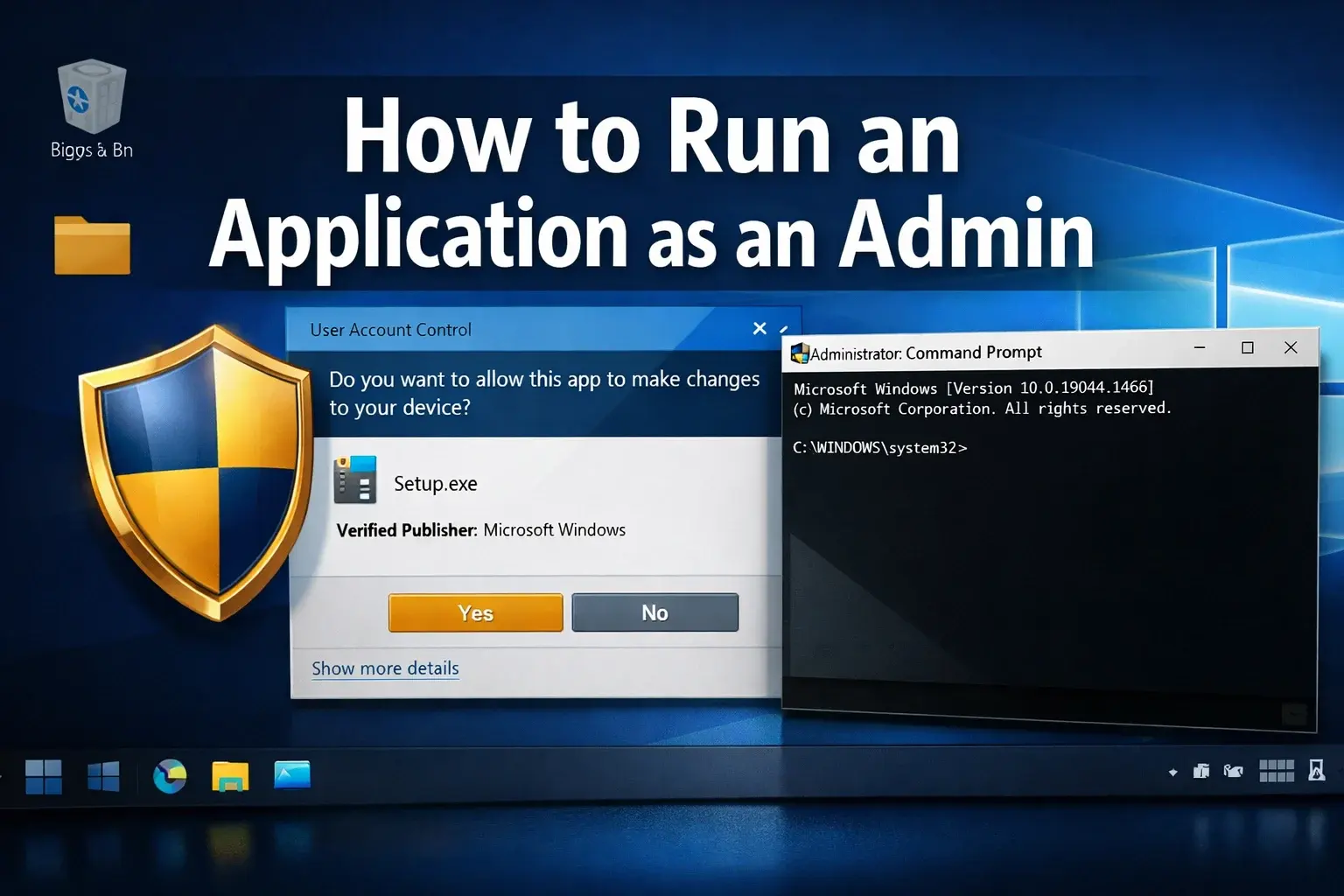
Have you ever clicked on a program only to get an error message saying you don't have permission to make changes? Or maybe you've tried to install software and hit a wall because Windows won't let you proceed? I've been there, and it's frustrating! The good news is that learning how to run a program as administrator is simpler than you might think, and it's an essential skill for anyone using Windows 11 or Windows 10.
Whether you're trying to install new software, modify system settings, or troubleshoot technical issues, understanding administrative privileges can save you hours of headaches. In this guide, I'll walk you through every method to run programs with administrator rights, explain when and why you need elevated permissions, and share some pro tips that even experienced users might not know.
Key Takeaways
- Multiple methods exist to run applications as administrator, including right-click context menus, keyboard shortcuts, and command-line options
- User Account Control (UAC) is a security feature that protects your system by requiring confirmation before granting admin rights
- The RUNAS command provides powerful flexibility for running programs under different user accounts directly from Command Prompt
- Creating shortcuts with admin privileges can streamline repetitive tasks and save time
- Understanding when to use admin rights helps maintain system security while giving you the control you need
What Does "Running as Administrator" Actually Mean?
Before we examine the how-to steps, let me explain what's happening behind the scenes. When you run an application as an administrator, you're giving that program elevated permissions to make changes to your computer system. Think of it like having a master key that unlocks restricted areas of your Windows operating system.
Standard user accounts have limited permissions by design. This security measure prevents malicious software from making unauthorized changes to critical system files. However, legitimate programs sometimes need these higher privileges to function properly—like when you're installing software, updating drivers, or modifying system configurations.
Windows uses something called User Account Control (UAC) to manage these permissions. When you attempt to run a program with admin rights, UAC displays a pop-up asking for confirmation. This extra step might seem annoying, but it's actually protecting your computer from potentially harmful changes.
"Administrative privileges are like having the keys to the kingdom—powerful and necessary, but they should be used thoughtfully and sparingly to maintain system security."
If you're experiencing other Windows-related issues, you might find our guide on software updates helpful for maintaining system health.
Method 1: How to Run an Application as an Admin Using the Context Menu
This is the most straightforward method and the one I use most frequently. It works for virtually any executable file, including BAT, CMD, EXE, MSC, and MSI files.
Step-by-Step Instructions
Step 1: Locate Your Application
First, find the program you want to run. This could be a desktop shortcut, a file in your Downloads folder, or an executable in your Program Files directory.
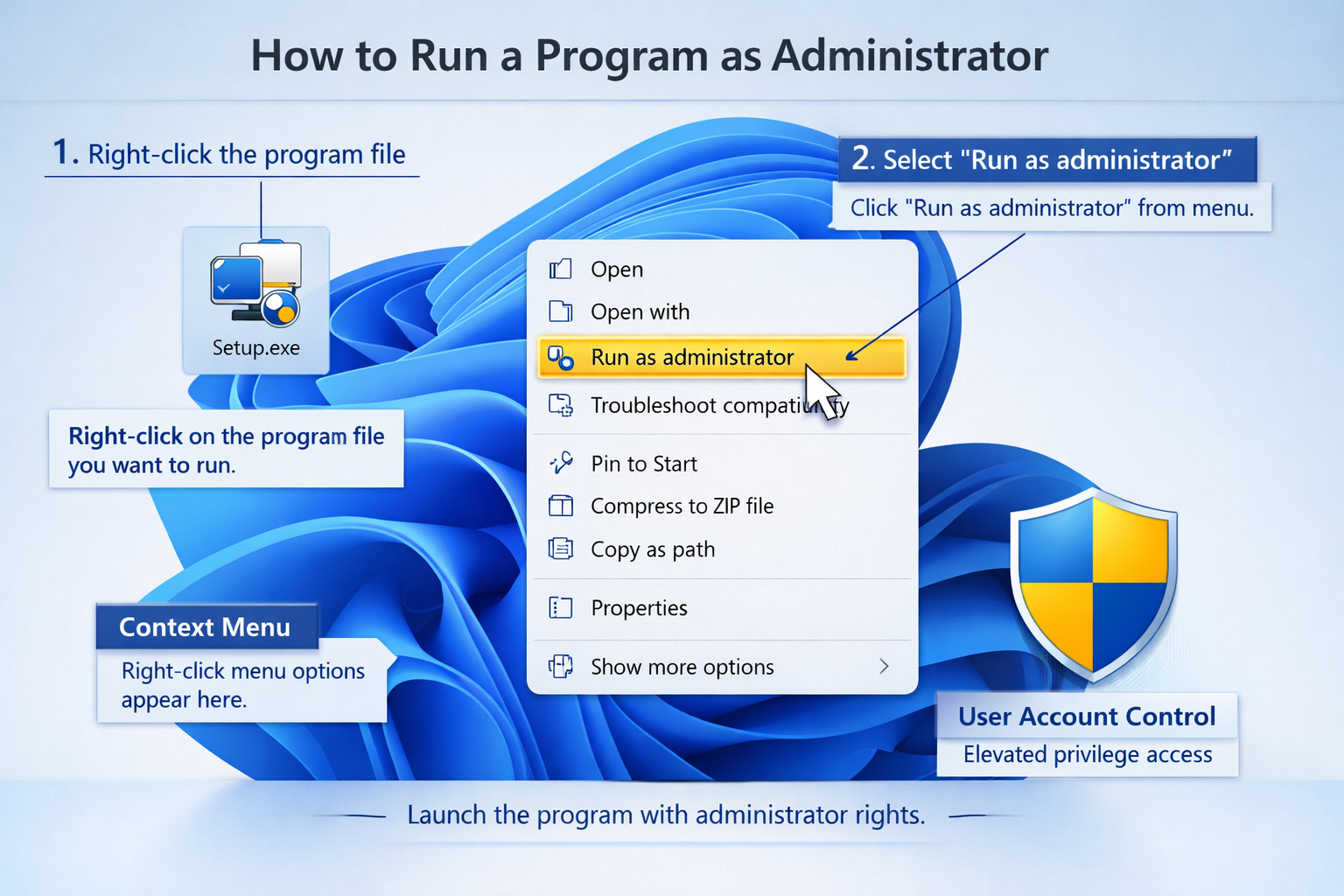
Step 2: Right-Click the Application
Position your mouse cursor over the application icon or file, then right-click (RMB - Right Mouse Button) to open the context menu. You'll see a list of options appear.
Step 3: Select "Run as Administrator"
Look for the option that says "Run as administrator" in the menu. It's usually near the bottom of the list and often has a small shield icon next to it. Click this option.
Step 4: Confirm the UAC Prompt
A User Account Control window will pop up asking, "Do you want to allow this app to make changes to your device?" Click "Yes" to proceed.
Step 5: Application Launches with Admin Rights
The program will now open with full administrative privileges, allowing it to make system-level changes as needed.
Pro Tip: Keyboard Shortcut ⌨️
Here's a time-saving trick: instead of right-clicking and selecting the option, you can hold Ctrl + Shift while clicking on the application. This immediately launches it with admin rights (after you confirm the UAC prompt, of course).
Method 2: Running Applications as a Different User
Sometimes you need to run a program not just with admin rights, but as a completely different user account. This is particularly useful in business environments or when managing multiple user profiles on the same computer.
Using the Context Menu for Different Users
Step 1: Access the Extended Context Menu
Right-click on your BAT, CMD, EXE, MSC, or MSI file. If you don't immediately see a "Run as different user" option, try holding the Shift key while right-clicking. This reveals additional context menu options.
Step 2: Select "Run as Different User"
Click on "Run as different user" from the menu.
Step 3: Enter Credentials
A Windows Security dialog box will appear asking for credentials. Here you need to:
- Enter the username of the account you want to use
- Type in the corresponding password
- Click OK
Step 4: Handle the UAC Prompt
If a User Account Control pop-up appears, click "Yes" to confirm.
Step 5: Application Runs Under New User
The application will now launch with the permissions and settings associated with the specified user account.
Windows 8 Start Menu Method
If you're still using Windows 8 (though I'd recommend upgrading for security reasons), there's a special method:
- Press the Windows key to open the Start screen
- Navigate to the bottom left corner of your screen
- Right-click with your mouse (or Shift + left-click with your touchpad)
- Select "Run as different user" from the options
Note: This method is specific to Windows 8 and doesn't work the same way in Windows 10 or Windows 11.
For businesses managing multiple computers and user accounts, our computer repair services can help set up proper user management systems.
Method 3: How to Run an Application as an Admin Using RUNAS Command
For those who prefer the command line or need to automate processes, the RUNAS command is incredibly powerful. This method gives you precise control over which user account runs which application.
Basic RUNAS Command Syntax
The RUNAS command follows this basic structure:
runas /user:USERNAME "C:\full\path\of\Program.exe"Let me break down each component:
- runas - The command itself
- /user:USERNAME - Specifies which user account to use
- "C:\full\path\of\Program.exe" - The complete file path to the program (in quotes)
Step-by-Step RUNAS Instructions
Step 1: Open Command Prompt
Press Windows key + R to open the Run dialog, type cmd, and press Enter. You don't need to open Command Prompt as administrator for this to work.
Step 2: Enter the RUNAS Command
Type your command following the syntax above. For example, to run Notepad as a user named "Test":
runas /user:test "C:\Windows\system32\notepad.exe"Step 3: Provide the Password
After pressing Enter, you'll be prompted to enter the password for the specified user account. Type it carefully (the characters won't display on screen for security) and press Enter.
Step 4: Confirm UAC if Prompted
If a User Account Control window appears, click "Yes" to allow the program to run.
Step 5: Application Launches
The program will now run under the specified user account with that account's permissions.
Advanced RUNAS Options 🚀
The RUNAS command has several useful parameters:
| Parameter | Function | Example |
|---|---|---|
| /savecred | Saves credentials for future use | runas /savecred /user:admin notepad.exe |
| /netonly | Uses credentials for network access only | runas /netonly /user:domainadmin app.exe |
| /smartcard | Uses smart card credentials | runas /smartcard /user:admin app.exe |
| /showtrustlevels | Displays available trust levels | runas /showtrustlevels |
Warning: Using /savecred can be convenient but poses security risks, as it stores your credentials. Only use this on personal computers you fully control.
If you're troubleshooting command-line issues or need help with Windows configurations, check out our how-to guides for more technical assistance.
Creating Shortcuts That Always Run as Administrator
If you frequently need to run a specific program with admin rights, creating a dedicated shortcut saves time and clicks. Here's how to set it up:
Creating a Standard Admin Shortcut
Step 1: Create a New Shortcut
Right-click on your desktop or in any folder, hover over "New", and select "Shortcut".
Step 2: Enter the Location
In the "Type the location of the item" field, browse to your program or type its full path. Click "Next".
Step 3: Name Your Shortcut
Give your shortcut a descriptive name and click "Finish".
Step 4: Configure Admin Properties
Right-click your new shortcut and select "Properties". Click the "Advanced" button on the Shortcut tab, then check the box labeled "Run as administrator". Click OK twice.
Now whenever you double-click this shortcut, it will automatically request admin privileges!
Creating a RUNAS Shortcut for Different Users
This is where things get really powerful. You can create shortcuts that automatically run programs as specific users:
Step 1: Right-Click and Create Shortcut
Right-click on your desktop or in a folder, select New → Shortcut.
Step 2: Enter RUNAS Command
In the location field, type your RUNAS command with parameters. For example:
runas /user:ComputerName\administrator cmdReplace "ComputerName" with your actual computer name and "administrator" with the desired username.
Step 3: Name and Finish
Give your shortcut a meaningful name like "CMD as Admin" and click "Finish".
Step 4: Use Your Shortcut
Double-click the shortcut whenever you need it. You'll still need to enter the password each time (unless you use the /savecred parameter, which I don't recommend for security reasons.
Customising Shortcut Icons
Want to make your admin shortcuts visually distinct? Right-click the shortcut, select Properties, click "Change Icon", and choose a different icon. I like using shield icons for admin shortcuts to remind me they have elevated privileges.
When Should You Run Programs as Administrator?
Not every program needs admin rights, and running everything with elevated privileges can actually make your system less secure. Here's when you should and shouldn't use administrator mode:
When to Use Admin Rights
- Installing new software - Most installers need admin access to write to Program Files
- Updating drivers - Hardware drivers require system-level access
- Modifying system settings - Changes to Windows configuration often need elevation
- Running legacy programs - Older software sometimes expects full system access
- Troubleshooting system issues - Diagnostic tools often require admin permissions
- Accessing protected files - System files and folders need elevated access
When NOT to Use Admin Rights
- Browsing the internet - Web browsers should run with standard permissions
- Opening email attachments - Never run unknown files with admin rights
- Playing games - Most modern games don't need elevation
- Regular document work - Word processors, spreadsheets, etc., work fine without admin access
- Downloading files - Standard permissions are sufficient and safer
"The principle of least privilege suggests you should only use the minimum permissions necessary for any task. Running everything as admin is like leaving all the doors in your house unlocked—convenient but risky."
For more security best practices, our article on computer security provides thorough guidance.
Troubleshooting Common Admin Access Issues
Even when following the steps correctly, you might encounter problems. Here are solutions to the most common issues:
"You Don't Have Permission" Errors
Problem: You get an error message even after running as administrator.
Solutions:
- Verify you're logged into an account with admin privileges
- Check if the file or folder has special permissions set
- Try taking ownership of the file (right-click → Properties → Security → Advanced)
- Disable antivirus temporarily to see if it's blocking access
UAC Prompt Doesn't Appear
Problem: The User Account Control window never shows up.
Solutions:
- Check UAC settings (search "UAC" in Windows Settings)
- Ensure UAC isn't completely disabled (not recommended)
- Run the program from a different location
- Restart Windows Explorer via Task Manager
RUNAS Command Fails
Problem: RUNAS command returns an error or doesn't work.
Solutions:
- Double-check username spelling and format
- Verify the account password is correct
- Ensure the user account has admin rights
- Use the full path to the executable in quotes
- Check if the Secondary Logon service is running
Password Not Accepted
Problem: You're certain the password is correct, but it keeps rejecting it.
Solutions:
- Check if Caps Lock is on
- Verify you're using the correct account (local vs. Microsoft account)
- Try the domainusername format for domain accounts
- Reset the password if necessary
If you're experiencing persistent issues with Windows, our remote computer repair services can quickly diagnose and fix them.
Security Considerations When Using Admin Rights
Running programs with administrator privileges is powerful but comes with responsibilities. Here's how to stay safe:
Best Security Practices
- Only elevate when necessary - Use standard permissions for everyday tasks
- Verify program sources - Only run trusted software with admin rights
- Keep UAC enabled - Don't disable User Account Control completely
- Use standard accounts daily - Create a separate admin account for system tasks
- Monitor admin activity - Check Windows Event Viewer for unexpected elevation requests
- Update regularly - Keep Windows and all software current with security patches
Signs Your System Might Be Compromised
Watch for these warning signs:
- Programs requesting admin rights unexpectedly
- UAC prompts appear without you launching anything
- Unknown processes running with elevated privileges
- System slowdowns after granting admin access
- Antivirus alerts related to elevated processes
If you notice any of these issues, run a full system scan immediately and consider seeking professional help from computer repair specialists.
Advanced Tips for Power Users
Once you're comfortable with basic admin access, these advanced techniques can enhance your workflow:
Creating a Permanent Admin Command Prompt Shortcut
Instead of repeatedly running CMD as admin, create a taskbar shortcut:
- Search for "Command Prompt" in the Start menu
- Right-click and select "Open file location"
- Right-click the Command Prompt shortcut
- Select Properties → Advanced → Run as administrator
- Pin the shortcut to your taskbar
Using Task Scheduler for Elevated Tasks
Task Scheduler can run programs with admin rights automatically:
- Open Task Scheduler (search in Start menu)
- Create a new task
- Check "Run with highest privileges"
- Set your trigger (time, event, etc.)
- Add the program as an action
This is perfect for maintenance scripts or backup programs that need elevation.
PowerShell Admin Access
PowerShell offers even more control than Command Prompt:
Start-Process notepad.exe -Verb RunAsThis command launches Notepad with admin rights. Replace "notepad.exe" with any program path.
For businesses looking to optimise their IT infrastructure, our blog contains numerous guides on system administration and optimisation.
Comparing Methods: Which Should You Use?
Let me help you choose the best method for your situation:
| Method | Best For | Difficulty | Speed |
|---|---|---|---|
| Right-click context menu | Quick, one-time tasks | Easy ⭐ | Fast ⚡⚡⚡ |
| Keyboard shortcut (Ctrl+Shift+Click) | Frequent manual elevation | Easy ⭐ | Very Fast ⚡⚡⚡⚡ |
| Admin shortcut | Programs you always run elevated | Medium ⭐⭐ | Very Fast ⚡⚡⚡⚡ |
| RUNAS command | Running as different users | Hard ⭐⭐⭐ | Medium ⚡⚡ |
| RUNAS shortcut | Automated different-user access | Hard ⭐⭐⭐ | Fast ⚡⚡⚡ |
| Task Scheduler | Automated scheduled tasks | Hard ⭐⭐⭐ | Automated ⚡⚡⚡⚡ |
My recommendation: Start with the right-click method until you're comfortable, then explore shortcuts for frequently-used programs and RUNAS for advanced scenarios.
Real-World Scenarios and Solutions
Let me share some practical examples from my experience:
Scenario 1: Installing Software from a USB Drive
Situation: You downloaded a program on another computer and need to install it from a USB stick.
Solution: Navigate to the USB drive, right-click the installer, select "Run as administrator," and confirm the UAC prompt. This ensures the installer has permission to write to Program Files and create registry entries.
Scenario 2: Modifying System Files for Troubleshooting
Situation: You need to edit the hosts file or modify system configuration files.
Solution: Create a desktop shortcut to Notepad with "Run as administrator" enabled in its properties. Use this shortcut whenever you need to edit protected files.
Scenario 3: Running Multiple User Profiles for Testing
Situation: You're a developer testing how your application works under different user accounts.
Solution: Create RUNAS shortcuts for each test user account. This lets you quickly launch your application under different profiles without logging out and back in.
Scenario 4: Corporate Environment with Restricted Access
Situation: You have a standard user account at work but occasionally need admin access for approved tasks.
Solution: Use the RUNAS command with your IT-provided admin credentials. This maintains security while giving you necessary access. Check with your IT department first—many organisations have specific policies about this.
If your business needs help managing user permissions and security, our team provides professional IT support services throughout the UK.
Understanding User Account Control (UAC) in Depth
Since UAC is central to running programs as admin, let's explore it more thoroughly:
What UAC Actually Does
User Account Control creates a security boundary between standard operations and administrative tasks. When a program requests elevation:
- Windows temporarily pauses the program
- The screen dims and shows the UAC prompt
- The system waits for your explicit approval
- Only after confirmation does the program receive admin rights
This "secure desktop" prevents malware from automatically clicking "Yes".
UAC Levels Explained
Windows offers four UAC levels (accessible via Control Panel → User Accounts → Change User Account Control settings):
- Always notify - Maximum security, prompts for everything
- Notify only when apps try to make changes (default) - Balanced security
- Notify only when apps try to make changes (no dim) - Slightly less secure
- Never notify - Not recommended, disables UAC protection
My recommendation: Keep the default setting unless you have specific reasons to change it.
Customising UAC Behaviour
Advanced users can modify UAC through the Group Policy Editor (gpedit.msc):
- Configure elevation prompts for administrators
- Set behaviour for standard users
- Enable/disable admin approval mode
- Control secure desktop settings
Warning: Misconfiguring UAC can compromise system security. Only modify these settings if you understand the implications.
Alternatives to Running as Administrator
Sometimes there are better solutions than elevating privileges:
Portable Applications
Many programs now offer portable versions that don't require installation or admin rights. These run entirely from their own folder and make no system changes.
Benefits:
- No admin access needed
- Can run from USB drives
- Leave no traces on the system
- Perfect for restricted environments
Virtual Machines
For testing or running untrusted software, consider using a virtual machine:
- Complete isolation from your main system
- Full admin rights within the VM
- Easy to reset or delete
- No risk to your actual computer
Standard User Account with Separate Admin Account
The most secure approach:
- Use a standard account for daily work
- Create a separate admin account for system tasks
- Only switch to admin when necessary
- This limits exposure to security threats
For help setting up secure multi-user environments, our computer repair services in Tooting can assist.
Frequently Asked Questions About Running Programs as Admin
Can I permanently disable UAC?
While technically possible, I strongly advise against it. UAC is a critical security feature that protects your system from unauthorised changes. Disabling it makes your computer vulnerable to malware and accidental system modifications. If UAC prompts annoy you, consider creating shortcuts with admin rights for frequently-used programs instead.
Why does my program still not work even with admin rights?
Several reasons could cause this:
- The program might be blocked by antivirus software
- Windows SmartScreen might be preventing execution
- The program could be incompatible with your Windows version
- File corruption or missing dependencies
- Additional permissions beyond admin rights might be needed
Try running the program in compatibility mode or checking Windows Event Viewer for specific error messages.
Is there a difference between "Run as administrator" and logging in as an administrator?
Yes! When you run a program as an administrator, only that specific program gets elevated privileges while the rest of your session remains at the standard user level. When you log in as an administrator, everything you do has elevated privileges, which is less secure. The first option is almost always preferable.
Can malware trick me into granting admin access?
Unfortunately, yes. This is why you should:
- Only grant admin rights to programs you trust
- Verify the publisher name in UAC prompts
- Never run suspicious files with elevation
- Keep antivirus software updated
- Be cautious with email attachments and downloads
The UAC prompt exists specifically to make you pause and think before granting powerful permissions.
Does running as admin make programs run faster?
No, administrative privileges don't affect program performance. Admin rights only control what system resources and files the program can access, not how fast it runs. If a program seems slow, look into the common causes of a slow or freezing computer instead.
The Future of User Permissions in Windows
As we move through 2026, Microsoft continues evolving how Windows handles security and permissions. Here's what's on the horizon:
Windows Security Enhancements
- More granular permission controls - Finer control over what specific actions require elevation
- Biometric authentication - Using fingerprints or facial recognition instead of passwords for UAC
- Contextual security - Smarter UAC that considers program reputation and behavior
- Cloud-based credential management - Smooth admin access across devices
Emerging Best Practices
The IT security landscape is shifting toward:
- Zero-trust architecture - Verifying every access request regardless of source
- Principle of least privilege - Giving users only the minimum permissions needed
- Just-in-time administration - Temporary admin access that expires automatically
- Privileged access management - Enterprise tools for controlling admin rights
Staying informed about these developments helps you maintain security while adapting to new technologies.
Conclusion: Mastering Admin Access in 2026
Learning to run applications as an administrator is an essential Windows skill that gives you control over your computer while maintaining security. Whether you choose the simple right-click method, create convenient shortcuts, or master the powerful RUNAS command, you now have multiple tools in your arsenal.
Remember these key principles:
- Use admin rights only when necessary
- Keep UAC enabled for security
- Verify program sources before elevating
- Choose the method that matches your needs and skill level
- Create shortcuts for frequently-used admin programs
Your Next Steps:
- Practice the basic method - Right-click a program and run it as administrator to get comfortable with the process
- Create an admin shortcut - Set up a permanent shortcut for a program you use regularly
- Explore RUNAS - If you manage multiple accounts, experiment with the command line method
- Review your security - Audit which programs actually need admin rights and adjust accordingly
- Stay updated - Keep Windows and all software current to maintain security
If you encounter persistent issues or need professional assistance with Windows administration, don't hesitate to contact experienced IT professionals. Whether you're in Mitcham, Streatham, or Tooting, expert help is available.
Now you're equipped to handle administrative tasks confidently and securely. Go forth and elevate those privileges—responsibly! 🚀
References
[1] Microsoft Documentation - User Account Control (UAC) Overview, Microsoft Learn, 2026
[2] Windows Security Best Practices, Microsoft Security Response Center, 2026
[3] RUNAS Command Reference, Microsoft TechNet, 2026
[4] Understanding Windows Privileges and Access Control, Windows IT Pro Center, 2026
[5] Cybersecurity Framework for User Access Management, National Cyber Security Centre, 2026
Windows troubleshooting and repair
Need Windows fixed without losing your data?
We repair Windows startup loops, update failures, driver problems, blue screens and slow PCs remotely or on-site across London, Berkshire and Surrey.
Keep reading
Related IT guides
How to Bypass the Microsoft Sign-In Page on Windows 11 (2026 Guide)
You've just unboxed a new laptop, or you're reinstalling Windows 11 on a machine you're passing to a family member. Everything's going smoothly until...
How to Use the winget Upgrade Command on Windows 11
I’ve been using Windows for years, and one thing I’ve learned is that keeping apps updated is non-negotiable . Outdated software is like leaving your...
How to Clear Temporary and Cache Files in Windows 11
slower than usual? Are you constantly seeing "low disk space" warnings? You're not alone. Over time, Windows 11 accumulates thousands of temporary...
Written by
Noman Maqsood (Nomi)
Senior IT Engineer · Azure Certified
Nomi has 7+ years in cloud, networking, and hybrid infrastructure. He writes about practical IT solutions — no jargon, just what actually works.
More from Nomi at nmaqsood.com →