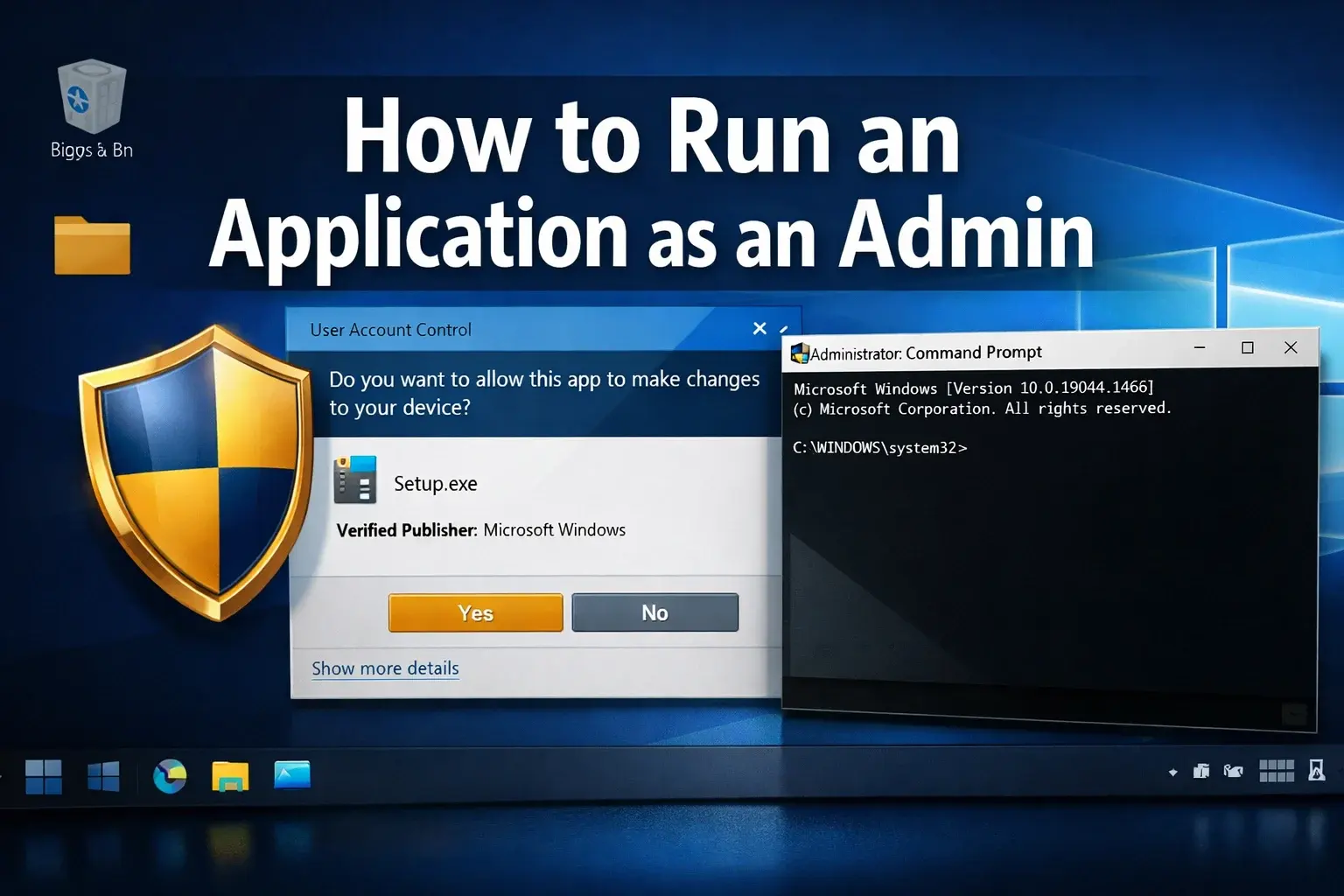
Some Windows tasks need administrator rights. Installing software, changing protected settings, updating drivers and fixing system-level problems can all trigger a User Account Control prompt.
This guide explains the safe ways to run an application as administrator in Windows, when you should use elevated rights, and when you should avoid them.
What does Run as administrator mean?
When you run an application as administrator, Windows gives that program permission to make changes that a standard user cannot make. That can include writing to protected folders, changing system settings, installing services or modifying drivers.
Windows uses User Account Control (UAC) to ask for confirmation before granting those rights. Keep UAC enabled. It is one of the simplest protections against unwanted system changes.
Method 1: use the right-click menu
- Find the application, installer or shortcut.
- Right-click it.
- Select Run as administrator.
- Approve the UAC prompt if you trust the application.
This is the safest everyday method because you only elevate the app for that one launch.
Method 2: use the keyboard shortcut
For many desktop shortcuts and Start menu results, you can hold Ctrl + Shift while opening the app. Windows will launch it with elevated rights and show the UAC prompt.
This is useful for Command Prompt, PowerShell, Terminal, Device Manager and installers you use often.
Method 3: run as a different user
In business environments, you may need to run a tool using a different admin account instead of your normal login.
- Hold Shift and right-click the application.
- Select Run as different user.
- Enter the username and password for the admin account.
- Approve the UAC prompt if shown.
This keeps daily work separate from privileged work, which is a better security habit than using an administrator account all day.
Method 4: use the runas command
If you prefer the command line, Windows includes the runas command.
runas /user:DOMAIN\Username "C:\Path\To\App.exe"For a local account, use the computer name or a dot:
runas /user:.\AdminUser "C:\Windows\System32\notepad.exe"Avoid /savecred on shared or business computers. It stores credentials for later use and can create an avoidable security risk.
How to make a shortcut always run as administrator
- Right-click the shortcut and choose Properties.
- Open the Shortcut tab.
- Select Advanced.
- Tick Run as administrator.
- Click OK, then Apply.
Use this only for trusted tools you genuinely need to elevate often. Do not set browsers, email clients or chat apps to always run as administrator.
When should you use administrator rights?
Use administrator rights for: software installation, driver updates, system repairs, protected configuration changes, device management and trusted troubleshooting tools.
Avoid administrator rights for: web browsing, opening email attachments, downloading files, normal office work, games and unknown programs.
If a random file asks for admin access and you were not expecting it, stop. Check where it came from before approving anything.
Common permission problems
You do not have permission
Confirm that your account is allowed to administer the device. On a work computer, your IT provider may need to grant access or make the change for you.
The UAC prompt does not appear
Restart Windows Explorer or reboot the computer. If UAC has been disabled, turn it back on from User Account Control settings.
The runas command rejects the password
Check the username format, Caps Lock and whether the account is a local account, domain account or Microsoft account. Domain accounts usually need DOMAIN\username.
Need help with Windows permissions?
If a Windows app will not install, a driver keeps failing, or you are stuck with permission errors, Verge Tech Solutions can help remotely or on-site across London, Berkshire and Surrey.
Book an appointment or call 0203 488 0336.
Windows troubleshooting and repair
Need Windows fixed without losing your data?
We repair Windows startup loops, update failures, driver problems, blue screens and slow PCs remotely or on-site across London, Berkshire and Surrey.
Keep reading
Related IT guides
5 Reasons Why Software Updates Are Important
Software updates are easy to ignore, especially when they appear at the worst possible time. But updates are one of the simplest ways to keep...
How to Enter Safe Mode in Windows 11: Quick Guide
for London Users Need to fix Windows 11 problems? Safe Mode allows you to troubleshoot issues by starting Windows 11 with only basic drivers. Here's...
Fixing No Sound Issues in Windows 11: Your Ultimate Troubleshooting Guide
If you’re struggling with no sound on your Windows 11 computer, you’re not alone. Many users face this frustrating issue, but the good news is that...
Written by
Noman Maqsood (Nomi)
Senior IT Engineer · Azure certified
Nomi has 7+ years in cloud, networking, and hybrid infrastructure. He writes about practical IT solutions — no jargon, just what actually works.
More from Nomi at nmaqsood.com →