Last updated: February 26, 2026
Key Takeaways
- KB5077181, released in February 2026, has caused widespread installation failures, network disruptions, and Bluetooth connectivity problems for many Windows 11 users
- Common issues include boot loops, DHCP errors showing “no Internet” status, audio glitches on gaming laptops, and S3 sleep mode failures with black screens
- Immediate fix: Uninstall KB5077181 through Windows Update history and pause updates until Microsoft releases a patch
- Workarounds include disabling Windows Sandbox and Hyper-V, running DISM repair commands, and temporarily turning off third-party antivirus software
- Microsoft has not published an official “known issues” page for this update, though Windows Central and Notebookcheck document numerous user reports
- A follow-up update, KB5077241 (released February 24, 2026), offers enhanced pause controls but doesn’t directly fix KB5077181 problems
- Not all users experience issues, but affected systems show consistent patterns of network, audio, and peripheral failures
Quick Answer
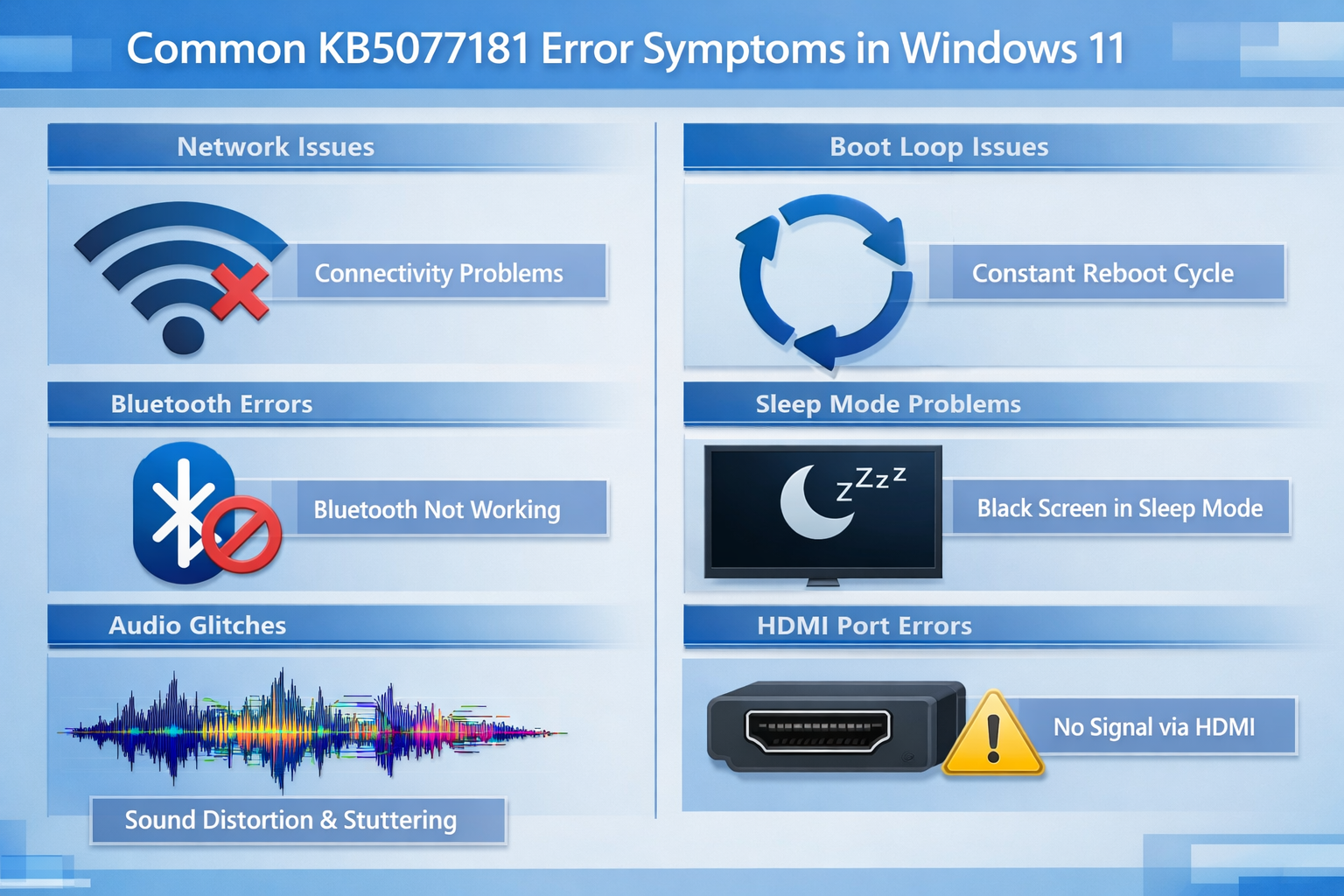
KB5077181 Windows 11 Update Issues primarily involve installation failures that trigger boot loops, network connectivity disruptions (especially DHCP and WiFi), Bluetooth device connection failures, and audio glitches on gaming laptops. If you’re experiencing these symptoms after the February 2026 security update, uninstall KB5077181 through Settings > Windows Update > Update history, then pause updates for 1-2 weeks while Microsoft develops a fix. Most affected users report immediate relief after removal.
What Is KB5077181, and Why Is It Causing Problems?
KB5077181 is Microsoft’s February 2026 security update for Windows 11, designed to patch vulnerabilities and improve system stability. Instead, it has triggered a range of technical failures across different hardware configurations.
The update was rolled out as part of Microsoft’s regular Patch Tuesday cycle, but unlike typical updates, KB5077181 appears to conflict with specific driver configurations, network adapters, and power management settings. Microsoft initially claimed there were no known issues, but community reports quickly contradicted this claim.
Key characteristics of the problematic update:
- Released as a mandatory security patch in February 2026
- Affects Windows 11 systems across various hardware manufacturers
- Creates conflicts with network drivers, Bluetooth stacks, and audio subsystems
- The installation process itself sometimes fails, creating a reinstall loop
- Not universally problematic—many systems install without incident
The inconsistency suggests the KB5077181 Windows 11 Update Issues stem from specific hardware or software combinations rather than a universal flaw in the update code itself.
What Are the Most Common KB5077181 Windows 11 Update Issues?
Users report seven primary categories of failures after installing KB5077181. Each affects different system components, making diagnosis challenging for those experiencing multiple symptoms.
Installation and Boot Problems
- Repeated download cycles: Update downloads, installs, then reappears after reboot
- Boot loops: System restarts continuously without reaching desktop
- Error codes during installation (specific codes vary by system configuration)
- Failed installations that leave systems in partially updated states
Network Connectivity Failures
Network issues represent the most widespread category of KB5077181 Windows 11 Update Issues:
- DHCP assignment failures showing “no Internet” despite physical connection
- WiFi adapters failing to detect networks after reboot
- Ethernet connections are showing as “limited” or “no connectivity”
- DNS resolution errors even when IP addresses are assigned correctly
For users experiencing network problems, our guide on fixing WiFi detection issues in Windows provides additional troubleshooting steps that may help.
Bluetooth Device Disconnections
- Previously paired devices fail to reconnect after a system restart
- Bluetooth stack becomes unresponsive in Device Manager
- Temporary fix: Full power cycle (shutdown, unplug, wait 30 seconds) sometimes restores connectivity
- Bluetooth settings show devices as “paired”, but connection attempts fail
Audio Glitches and System Hangs
Particularly prevalent on gaming laptops:
- Random popping sounds during audio playback
- Complete audio dropout requiring service restart
- System freezes when audio applications launch
- Audio device disappearing from Sound settings
If you’re dealing with audio problems beyond KB5077181, check our comprehensive guide to fixing no sound issues in Windows 11.
Sleep Mode and Display Issues
- S3 sleep mode fails to resume properly
- Black screens when waking from sleep (requiring a hard restart)
- HDMI output glitches when connecting external displays
- Display settings reverting to default after sleep/wake cycle
Peripheral and Hardware Recognition
- USB devices requiring re-detection after each boot
- External storage showing as “unformatted” despite containing data
- Printer connections are failing with generic error messages
Common mistake: Assuming hardware failure when symptoms appear immediately after KB5077181 installation. Always correlate timing with update installation before replacing hardware.
How Do You Uninstall KB5077181 to Fix These Issues?
Removing the problematic update resolves symptoms for most affected users. This process takes 5-10 minutes and doesn’t require advanced technical knowledge.
Step-by-Step Uninstall Process
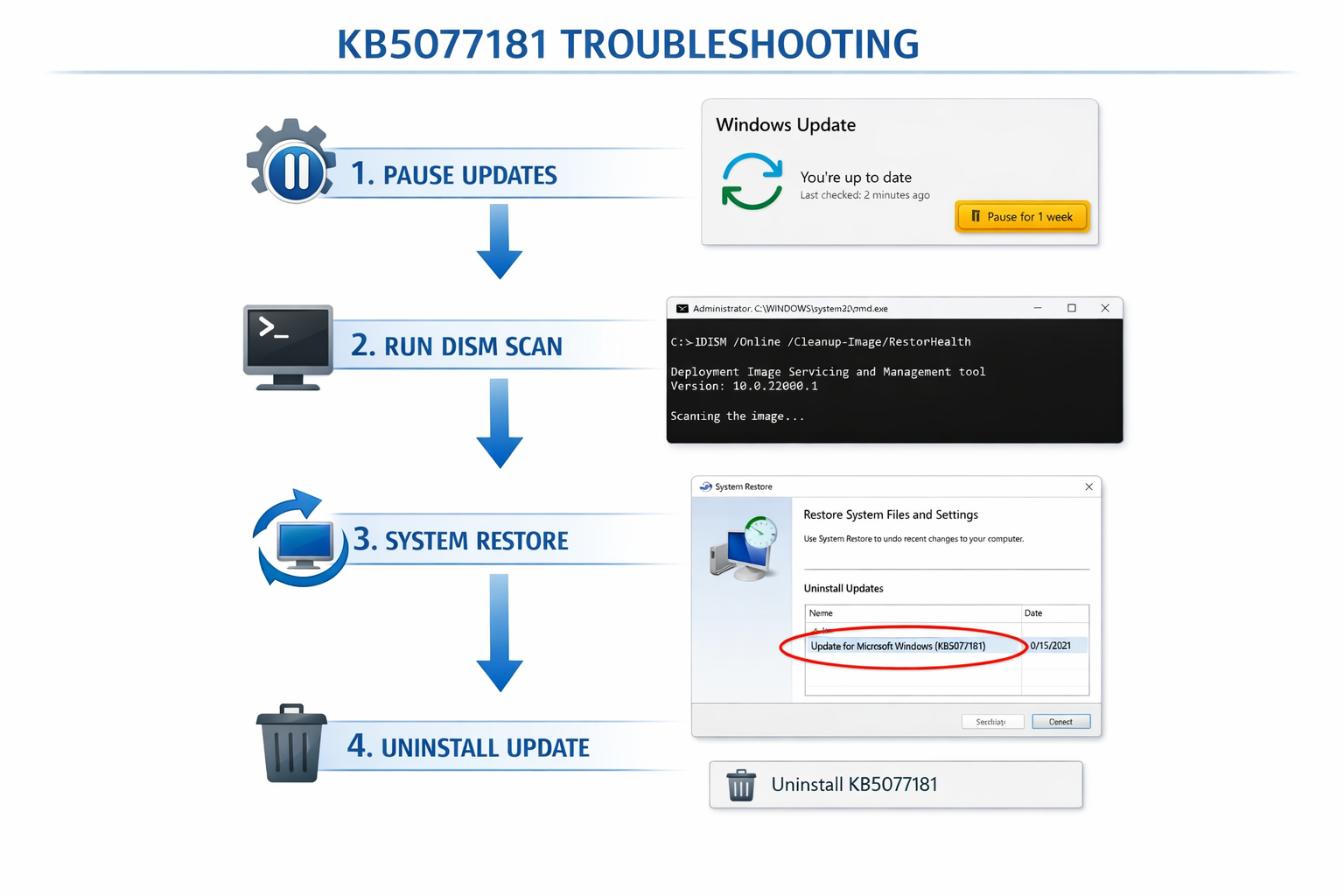
Open Windows Update history
- Press
Windows + Ito open Settings - Navigate to Windows Update > Update history
- Scroll to find KB5077181 in the recent updates list
- Press
Uninstall the update
- Click “Uninstall updates” at the bottom of the history page
- Locate KB5077181 in the installed updates list
- Select it and click “Uninstall”
- Confirm the action when prompted
Restart your system
- Allow the uninstall process to complete (typically 2-5 minutes)
- Restart when prompted
- Verify symptoms have resolved after reboot
Pause future updates temporarily
- Return to Settings > Windows Update
- Click “Pause updates” and select 1-2 weeks
- This prevents automatic reinstallation while Microsoft develops a fix
Choose this method if: You can still boot to Windows normally and access Settings. For systems stuck in boot loops, you’ll need to use Windows 11 Safe Mode to access uninstall options.
What Workarounds Can Fix KB5077181 Windows 11 Update Issues Without Uninstalling?
Some users prefer to keep the security update installed to mitigate specific symptoms. These workarounds address individual problem categories.
For Network Connectivity Problems
Disable and re-enable the network adapter:
- Open Device Manager (
Windows + X, then select Device Manager) - Expand “Network adapters”
- Right-click your active adapter, select “Disable device”
- Wait 10 seconds, then right-click again and select “Enable device”
Reset TCP/IP stack:
<code>netsh int ip reset
netsh winsock reset
</code>
Run these commands in Command Prompt (Admin), then restart.
For Installation Failures and System Corruption
Run DISM to restore system health:
<code>DISM /Online /Cleanup-Image /RestoreHealth
</code>
This command scans and repairs Windows system files that may have been corrupted during the failed KB5077181 installation. The process takes 10-30 minutes, depending on system speed.
For Bluetooth and Audio Issues
- Temporarily disable third-party antivirus: Some security software conflicts with KB5077181’s driver updates
- Update Bluetooth and audio drivers manually through Device Manager or manufacturer websites
- Restart Windows Audio service: Open Services (
services.msc), find “Windows Audio,” right-click and restart
For Virtualisation Conflicts
If you use Windows Sandbox or Hyper-V:
- Open “Turn Windows features on or off”
- Temporarily uncheck “Windows Sandbox” and “Hyper-V”
- Restart system
- Re-enable after verifying stability
Edge case: Systems running both third-party virtualisation (VMware, VirtualBox) and Windows Hyper-V simultaneously show higher failure rates with KB5077181.
Should You Install KB5077241 as an Alternative?
KB5077241, released on February 24, 2026, is a separate update that adds enhanced pause controls and update management features. It does not replace or fix KB5077181.
What KB5077241 provides:
- Extended pause duration options (up to 5 weeks)
- Granular control over which update types install automatically
- Improved rollback options for problematic updates
What it doesn’t do:
- Fix existing KB5077181 installation failures
- Resolve network, Bluetooth, or audio issues caused by KB5077181
- Prevent KB5077181 from installing if you haven’t paused updates
Install KB5077241 if you want better update control mechanisms, but don’t expect it to resolve active KB5077181 Windows 11 Update Issues. You’ll still need to uninstall the problematic update separately.
Why Hasn’t Microsoft Acknowledged These Issues Officially?
As of late February 2026, Microsoft has not published a consolidated “known issues” page for KB5077181, despite widespread user reports across forums and tech news sites.
Possible reasons for the limited official response:
- Issues affect a subset of configurations rather than all Windows 11 systems
- Microsoft may be collecting diagnostic data before issuing formal guidance
- The company historically waits for issue prevalence to reach specific thresholds before public acknowledgement
- Internal testing may not have replicated the specific hardware/software combinations causing failures
Windows Central and Notebookcheck have documented the spectrum of KB5077181 problems, linking to affected user reports and providing community-sourced workarounds. These third-party sources currently offer more comprehensive issue tracking than official Microsoft channels.
What this means for users: Don’t wait for official guidance if you’re experiencing symptoms. The uninstall and pause approach provides immediate relief while Microsoft investigates.
Understanding why software updates are important helps balance the need for security patches against the frustration of problematic releases like KB5077181.
When Should You Perform a Repair Install or System Wipe?
Extreme cases where KB5077181 corrupted core system files may require more aggressive recovery methods. Reserve these approaches for situations where standard uninstallation doesn’t resolve issues.
Repair Install (Preferred Nuclear Option)
A repair install reinstalls Windows 11 while preserving your files, apps, and settings:
When to choose this:
- Uninstalling KB5077181 didn’t resolve the symptoms
- The system shows persistent instability even after the update removal
- DISM and SFC scans find errors that they can’t repair
- You want to avoid losing installed applications
How to perform:
- Download Windows 11 installation media from Microsoft
- Run setup.exe while Windows is running
- Select “Keep personal files and apps”
- Follow prompts to complete the repair installation
Our Windows repair installation service can guide you through this process if you’re uncomfortable performing it yourself.
Full System Wipe (Last Resort)
Only consider this if:
- The repair install failed to resolve issues
- You suspect malware contributed to the update corruption
- The system exhibits multiple unrelated failures beyond the KB5077181 symptoms
- You have complete backups of all important data
A clean installation removes all software and settings, giving you a fresh Windows 11 environment. This eliminates any configuration conflicts but requires reinstalling all applications and restoring data from backups.
Common mistake: Wiping your system before trying less destructive options. Always attempt uninstall, workarounds, and repair install before resorting to a complete wipe.
Comparison: KB5077181 Issues vs. Previous Problematic Windows Updates
| Update | Release Date | Primary Issues | Affected Systems | Microsoft Response Time |
|---|---|---|---|---|
| KB5077181 | February 2026 | Network, Bluetooth, audio, boot loops | Subset of Win11 systems | No official acknowledgment yet |
| KB5012643 | May 2022 | BitLocker recovery loops, performance degradation | Wide range of Win11 devices | 3 days to acknowledgment |
| KB5007262 | November 2021 | AMD CPU performance drops | AMD Ryzen systems | 2 days to acknowledgment, patch within week |
| KB4524244 | January 2020 | Boot failures, stretched wallpapers | Win10 systems | Same-day acknowledgment |
KB5077181 Windows 11 Update Issues show a pattern similar to KB5012643—affecting specific configurations rather than all systems, which may explain Microsoft’s delayed official response.
FAQ
Can I permanently block KB5077181 from reinstalling?
Yes, use the “Show or hide updates” troubleshooter from Microsoft’s support site, or pause updates indefinitely through Group Policy Editor (available in Windows 11 Pro and Enterprise). Pausing for 1-2 weeks usually suffices until Microsoft releases a fixed version.
Will uninstalling KB5077181 leave my system vulnerable?
You’ll lose the February 2026 security patches temporarily. If you use your system on trusted networks and maintain current antivirus software, the short-term risk is minimal. Reinstall once Microsoft releases a corrected update.
How do I know if my issues are caused by KB5077181 specifically?
Check the timing—symptoms appearing within hours or days of the February 2026 update installation strongly suggest correlation. Verify KB5077181 appears in your update history around the time problems started.
Does KB5077181 affect Windows 10 systems?
No, KB5077181 is specific to Windows 11. Windows 10 receives different update packages with separate KB numbers, though occasionally similar issues affect both platforms through related code.
Can I skip this update entirely and install the next one?
Yes, if you pause updates until March 2026’s Patch Tuesday, you can install the next cumulative update which typically includes previous security fixes without the bugs. This approach works for non-critical systems.
Will reinstalling KB5077181 after uninstalling cause the same problems?
Most likely yes, unless Microsoft releases a revised version with the same KB number (rare but possible). Wait for the next monthly update or a specific fix announcement before reinstalling.
What should I do if I can’t boot to Windows to uninstall the update?
Boot into Safe Mode using the advanced startup options (interrupt boot three times to trigger recovery), then uninstall KB5077181 from there. Alternatively, use System Restore if you have a restore point from before the update.
Are gaming laptops more affected than other systems?
User reports suggest gaming laptops show higher rates of audio glitches and sleep mode issues, possibly due to specialized audio drivers and custom power management profiles that conflict with KB5077181’s changes.
How long should I pause Windows updates?
Pause for 1-2 weeks initially. Monitor tech news sites and Microsoft’s update history page for announcements about KB5077181 fixes. Resume updates once a corrected version releases or the next monthly patch arrives.
Can third-party update managers prevent these issues?
Tools like WSUS Offline Update or third-party patch management software give you more control over which updates install and when, potentially helping you avoid problematic releases. However, they require more technical knowledge to configure properly.
Should I report my KB5077181 issues to Microsoft?
Yes, use the Feedback Hub app in Windows 11 to report specific symptoms. Include hardware details, error codes, and exact symptoms. Aggregate reports help Microsoft identify patterns and prioritize fixes.
Will a BIOS update fix KB5077181 problems?
Unlikely, since the issues stem from Windows update code rather than firmware. However, if your BIOS is significantly outdated, updating it might resolve compatibility issues that KB5077181 exposed rather than caused.
Conclusion
KB5077181 Windows 11 Update Issues demonstrate the ongoing challenge of delivering universal updates across diverse hardware configurations. While many users installed the February 2026 security patch without incident, those experiencing network failures, Bluetooth disconnections, audio glitches, or boot loops have clear remediation paths.
Your action plan:
- If experiencing symptoms: Uninstall KB5077181 immediately through Windows Update history
- Pause updates for 1-2 weeks to prevent automatic reinstallation
- Try workarounds (DISM repair, driver updates, service restarts) if you prefer keeping the security patch
- Monitor official channels for Microsoft’s acknowledgment and fix timeline
- Consider repair install only if uninstallation doesn’t resolve persistent issues
The lack of official Microsoft acknowledgment shouldn’t prevent you from taking action. Community-documented solutions and the straightforward uninstall process provide reliable relief while Microsoft investigates and develops a corrected update.
For systems that require more extensive troubleshooting, our remote desktop support services can diagnose and resolve complex KB5077181-related issues without an on-site visit.
Stay informed about future Windows 11 updates by bookmarking reliable tech news sources and checking Microsoft’s update history page before installing monthly patches. When problematic updates like KB5077181 slip through testing, informed users who pause and evaluate before installing avoid the worst disruptions.

Nomi
https://nmaqsood.com/Noman Maqsood (Nomi) is a Senior IT Engineer with 7+ years in cloud, networking, and hybrid infrastructure. Azure certified. He writes about practical IT solutions, no jargon, just what actually works.