In today’s guide, we’ll explore how to adjust the power button action on your computer, whether it’s unplugged or plugged in. This simple adjustment can help you customise your power management settings according to your preferences.
Accessing the Control Panel
To get started, open the search menu on your computer and type in “Control Panel.” This will display the best result, allowing you to click it to access the settings.
Changing Power Button Settings
Once you’re in the Control Panel, change your view setting to “Large Icons” in the top right corner. Next, look for and select “Power Options” on the left side of the window. Here, you’ll find settings for power management.
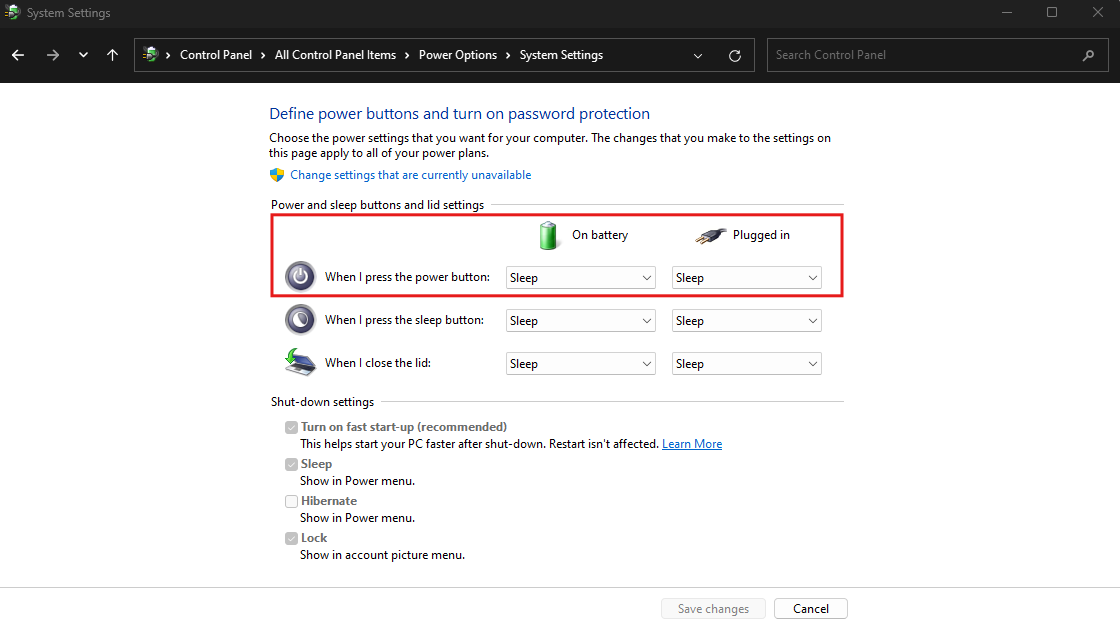
In the Power Options menu, locate the option that says, “Choose what the power button does.” Clicking on this will lead you to the relevant section for customising power button actions.
Selecting Your Preferences
You’ll see different options depending on whether you are using a laptop or a desktop computer. If you’re using a laptop, you’ll have choices for both plugged-in and battery modes. For a desktop computer, the settings will be limited to desktop options.
In the dropdown menu that appears, you can select what the power button does when pressed. Options typically include “Do nothing,” “Sleep,” “Shut down,” or “Turn off the display.” Select your preferred setting for each mode.
Saving Your Changes
After making your selection, don’t forget to click the “Save Changes” button at the bottom of the window. This will ensure that your adjustments take effect as intended.
Conclusion
Customising the power button action is straightforward. By following these steps, you can set the power button to perform the action that best suits your needs. Enjoy a more tailored computing experience! If you have any questions, feel free to contact us.

Nomi
https://nmaqsood.com/Noman Maqsood (Nomi) is a Senior IT Engineer with 7+ years in cloud, networking, and hybrid infrastructure. Azure certified. He writes about practical IT solutions, no jargon, just what actually works.